Manage your Workspace settings
Updated 29 September 2026
Workspace settings control its identity, access, pages, connected sources, notifications, and glossary.
Before you start
You need to be a Workspace Owner or a Company admin to change Workspace settings. Some controls may be read-only for other Members.
Open Workspace settings
- Open the Workspace and select Workspace settings in its header, or open your user menu and select Settings.
- Under Workspace settings in the left navigation, choose the Workspace.
The current Workspace settings tabs are:
- General
- Members
- Pages
- Meetings & channels
- Notifications
- Glossary
General
Use General to review or change the Workspace’s name, type, parent, appearance, and codename. The Parent field places it beneath another Workspace. Members of ancestor Workspaces inherit access, so review access before changing the parent.
The Workspace’s purpose is the opening of its Context page. Select Open the context to read or edit it. See Review your Workspace Context.
The Codename is used instead of the Workspace name for readers who cannot see names.
Under Appearance, select a Workspace color or upload a PNG, JPEG, WebP, or SVG image up to 500 KB. The image appears in Workspace navigation and the Chat context picker. See Customize a Workspace’s appearance.
A team Workspace can also offer Show workspace in company directories, which lets people in your company find the Workspace in lists and directories. It does not grant access: people still need to be members to open it.
The Danger zone includes Workspace deletion. The confirmation lists what will be permanently removed, such as goals, observations that belong only to this Workspace, meetings and their transcripts, and Workspace pages. To enable deletion, enter the Workspace name exactly as shown. Confirm the Workspace and retention requirements before continuing.
The Restrict this workspace control excludes the Workspace from cross-Workspace summaries and prevents sharing through context links or grants. Members keep their normal access. Review this separately from the member list.
Members
The Access section shows direct members, with their Owner or Member role and email. Ancestor membership and General access are separate access mechanisms; the direct member list is not the whole access boundary. Owners can use Add member to grant direct membership and Remove to remove that direct membership. To review remaining access, also check ancestor membership, General access, and Advanced: agent access, including personal access token grants. To transfer ownership, choose Owner in another member’s role control and confirm; you will no longer be able to manage the Workspace settings afterward.
Review General access and, when available, Advanced: agent access separately from direct members. See Add members to your Workspace.
Pages
Use Pages to:
- select Manage pages to open Manage page types;
- add or remove installed page types;
- create a Custom page;
- if Track a meeting series is available in your account, attach a page to an existing series tag;
- use Upload a document to save a Background document and create a native Workspace page from the same file;
- view, reorder, and nest the page tree under Structure;
- edit Page skill to guide how the agent maintains a specific page;
- use Move to choose a new parent; sub-pages move with the page;
- review Recent structure changes;
- request Recompile for supported typed pages;
- open Archived pages;
- manage source files under Background documents.
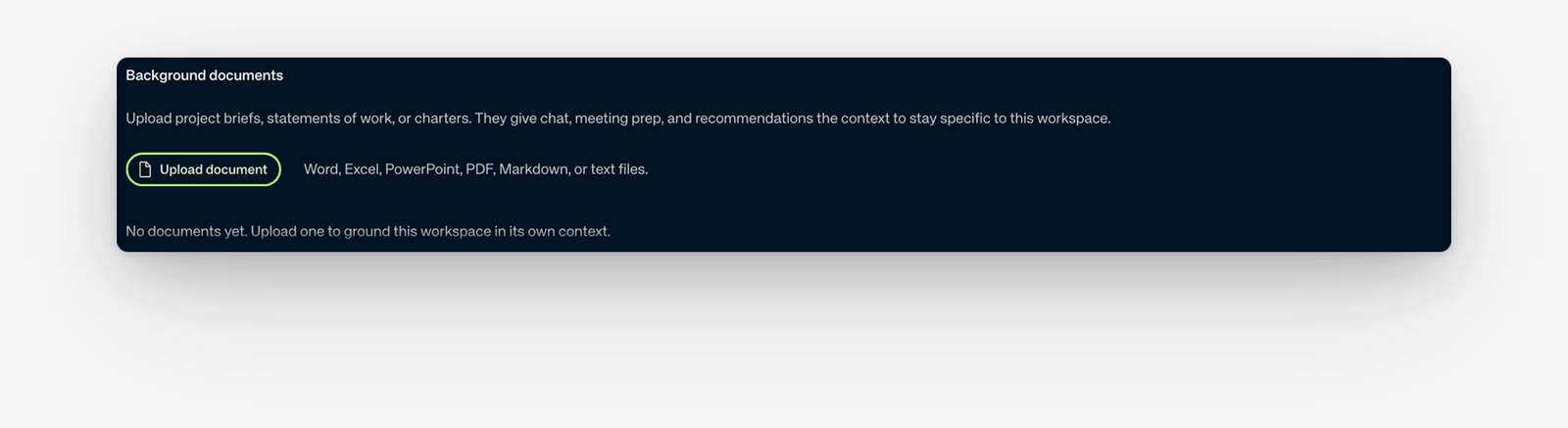
Upload document under Background documents adds a source file. Upload a document inside Manage page types also creates a native Workspace page from the file.
Share the context downstream lets descendant Workspaces use Context as read-only governing context. Publish to descendants makes it available downstream. This does not share other pages or grant Workspace access.
See Use your Workspace pages and Edit and customize Workspace pages.
See Add documents to a Workspace.
Meetings & channels
Use this tab to set meeting-note defaults, connect sources, and choose where updates are posted.
Notes format and length
Notes format and length applies to every meeting mapped to the Workspace. Choose Not set, Standard, or Minutes for format, and use the notes-length control when the Workspace needs a shared length.
An unset Workspace value follows the Company setting. If neither sets format, notes use Standard. If neither sets length, the organizer’s personal preference applies. A Company or Workspace length setting takes precedence over that personal preference.
Workspace channels
Under Workspace channels, connect the Slack or Microsoft Teams channel the Workspace should read from or post to. Use Edit Slack channels or Edit Teams channels. If Slack is not installed, ask an administrator to install In Parallel first. To manage channels you also need to have linked your own Slack or Microsoft account under Settings → Account → Connections.
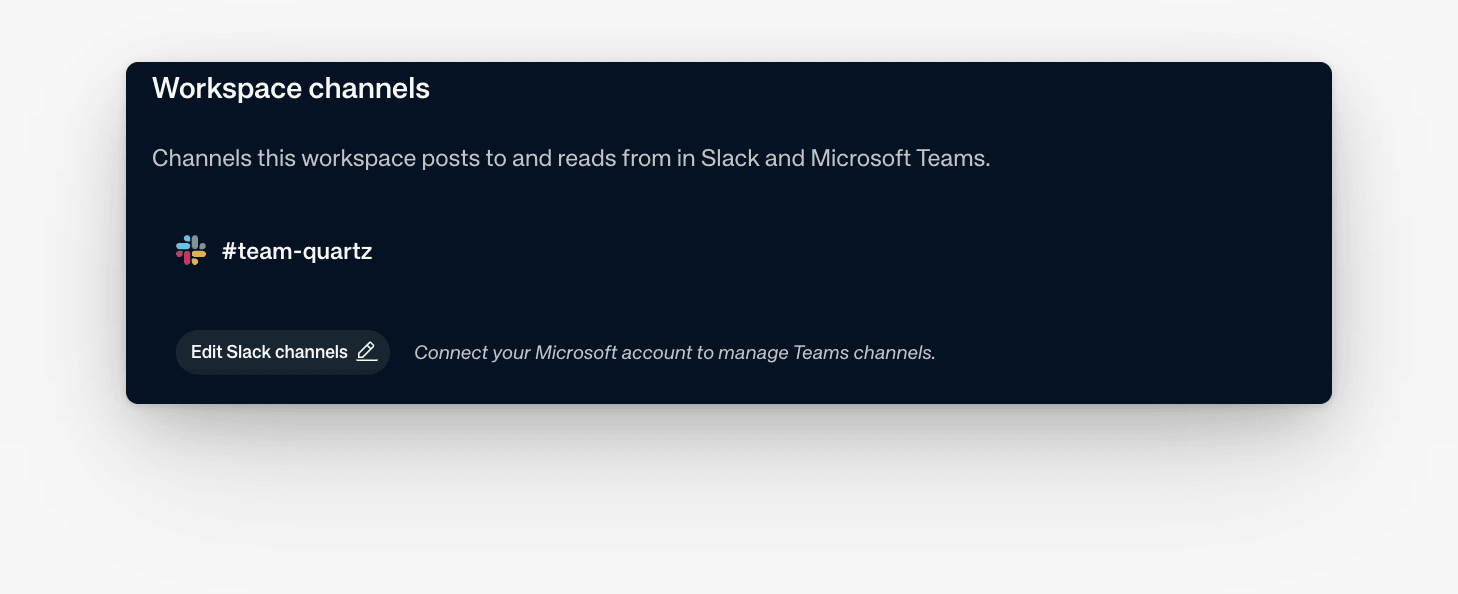
After you map a channel, three switches appear:
- Capture observations from channels reads channel messages into the Workspace’s context.
- Deliver meeting notes to channels posts full meeting reports to the channel.
- Deliver briefs to channels posts Workspace briefs to the channel.
Reading messages and posting updates are separate choices. Everyone in the channel can see what is posted.
Under Observation kinds, the Signals switches choose which kinds of signals are extracted from meetings and channels and feed generated documents. You can edit a built-in kind or add a custom kind.
Notifications
The Briefs card controls the Workspace’s forward-looking brief. Choose Daily, Weekly, Monthly, or a combination. Monthly provides a leadership read. For each schedule, choose the time (and, for Weekly, the day) and the output length: Short, Medium, Long, or Full.
Review Delivery to you for your personal copy and Delivery to workspace for the copy sent to Workspace members. Select the intended delivery methods; connecting an integration alone does not enable delivery.
See Configure Workspace briefs.
Glossary
Use the Workspace glossary for names, terms, and jargon that should improve transcription accuracy in this Workspace. Company-level terms apply across all Workspaces.