Manage email notifications
Choose email delivery for personal and meeting updates and Workspace briefs.
Updated 10 September 2026
Choose the email updates that help you prepare for meetings and follow Workspace changes without receiving the same information from every channel.
In Parallel has two notification levels:
- Personal notifications cover in-app notices, Daily Digest readiness, and post-meeting Notes.
- Workspace notifications cover a Workspace’s scheduled briefs.
Open your personal notifications
- Open your user menu and select Settings.
- Choose Account.
- Open Notifications.
Set your timezone under Profile before choosing delivery times. Notification schedules use your configured local time.
Choose personal email updates
Meeting preparation
To prepare for a meeting, ask in Chat with the meeting or Workspace as context. Pre-meeting talking points are no longer a personal notification setting.
Personal Daily Digest
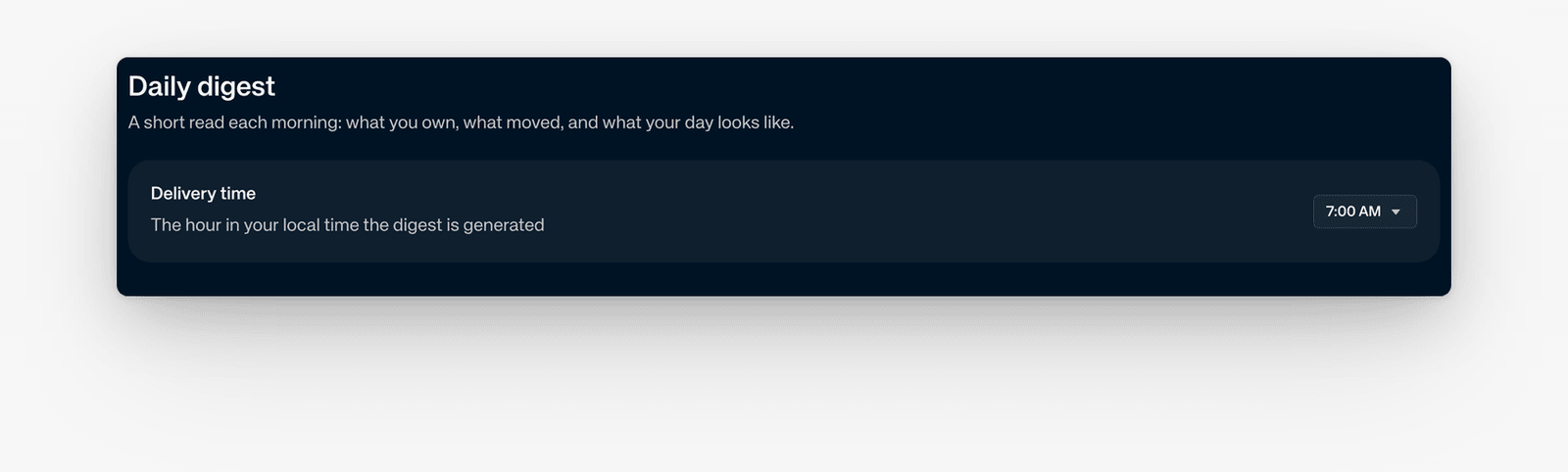
Under Daily digest, choose the time when your personal digest is generated in your local timezone. It can summarize context across the Workspaces you can access.
Digest ready notification controls the in-app notification when the digest is ready. It is separate from the generation time and from each Workspace’s brief schedule.
Workspace briefs you receive
Check Workspace briefs you receive for the Workspace outputs available to you. The Workspace decides when its brief is written; your receiving preferences determine whether and where it reaches you.
Post-meeting Notes
Configure Notes separately for:
- Meetings I organize — choose recipients, delivery method, and personal notes length. A Company or Workspace length setting overrides that personal preference.
- Meetings others organize — use Send notes to me for meetings whose organizer does not use In Parallel or has turned notes off.
Review recipient settings before enabling automatic delivery. Meeting Notes can include information that should stay within the meeting or its connected Workspace.
A meeting-notes email can suggest a Workspace for publication. Review and publish the actual changelog from Workspace updates within the meeting page. If you map the meeting manually using Publish to in the meeting details pane, the changelog also appears there.
Choose Workspace briefing emails
You need permission to change the Workspace’s notification settings. If the controls are unavailable, ask your Workspace Owner or Company Admin.
- Open your user menu and select Settings.
- Choose the Workspace.
- Open Notifications.
- Find the Briefs card.
Choose the daily, weekly, or monthly schedule and output length, then review:
- Delivery to you for your personal copy; and
- Delivery to workspace for a copy shared with Workspace members.
Select email when it is available as the intended delivery method. A schedule can be active without email delivery, so check both the schedule and delivery settings when an expected message does not arrive.
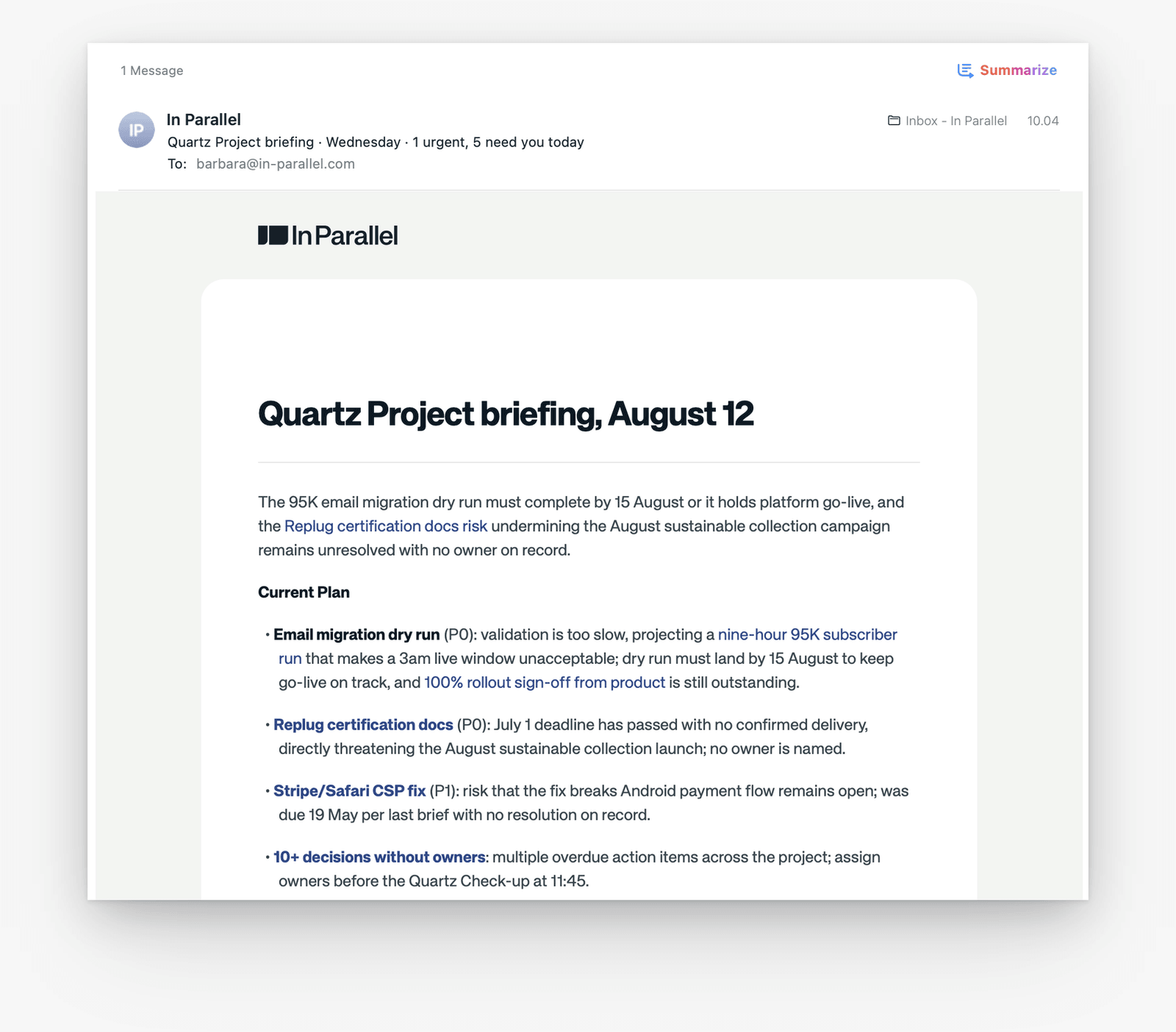
Briefings look forward at the current situation and what needs attention next. For Slack or Microsoft Teams channel copies, also check Deliver briefs to channels under Workspace → Meetings & channels.
Reduce duplicate notifications
- Use the personal Daily Digest for one cross-Workspace summary.
- Keep Workspace briefs for Workspaces where you need a scheduled team-level view.
- Turn off duplicate channel delivery when the same update already reaches you through email, Slack, or Microsoft Teams.
- Review the daily, weekly, and monthly schedules on the Briefs card.
- Review organizer and participant settings separately for post-meeting Notes.
If an email does not arrive
- Confirm the personal Daily Digest generation time or the relevant Workspace schedule.
- Confirm email is selected where a delivery-method control is available.
- Check that your profile email and timezone are correct.
- For Workspace updates, confirm you still have access to the Workspace and that the expected audience is selected.
- For meeting Notes, confirm the Recorder joined and processing completed.
- Check your organization’s mail filtering before enabling a second delivery channel.
If the settings are correct and messages still do not arrive, contact the In Parallel support team with the notification type, expected delivery time and timezone, and Workspace or meeting name. Do not include transcript text or other sensitive meeting content in the first message.