Configure Workspace briefs
Choose the cadence, time, length, and available delivery controls on the Briefs card.
Use the Briefs card in a Workspace’s Notifications settings to choose its cadence, scheduled time, length, and available delivery methods.
Before you start
You need permission to change the Workspace’s notification settings. If the controls are unavailable, ask your Workspace Owner or Company Admin.
These steps cover the Briefs card with Daily, Weekly, and Monthly switches. If your settings show a different layout, ask your Workspace Owner or Company Admin for help.
Changes to the cadence, schedule, and length are saved as you make them. Review the current settings before changing a control.
Set the schedule and length
- Open your user menu and select Settings.
- Choose the Workspace in the settings navigation.
- Open Notifications and find the Briefs card.
- Turn on Daily, Weekly, Monthly, or a combination. The scheduling controls appear for enabled cadences.
- Choose the day and time where shown. For Monthly, choose Day 1 through Day 28, or Last day. Times are available in 15-minute intervals.
- Use the length control to choose Short, Medium, Long, or Full.
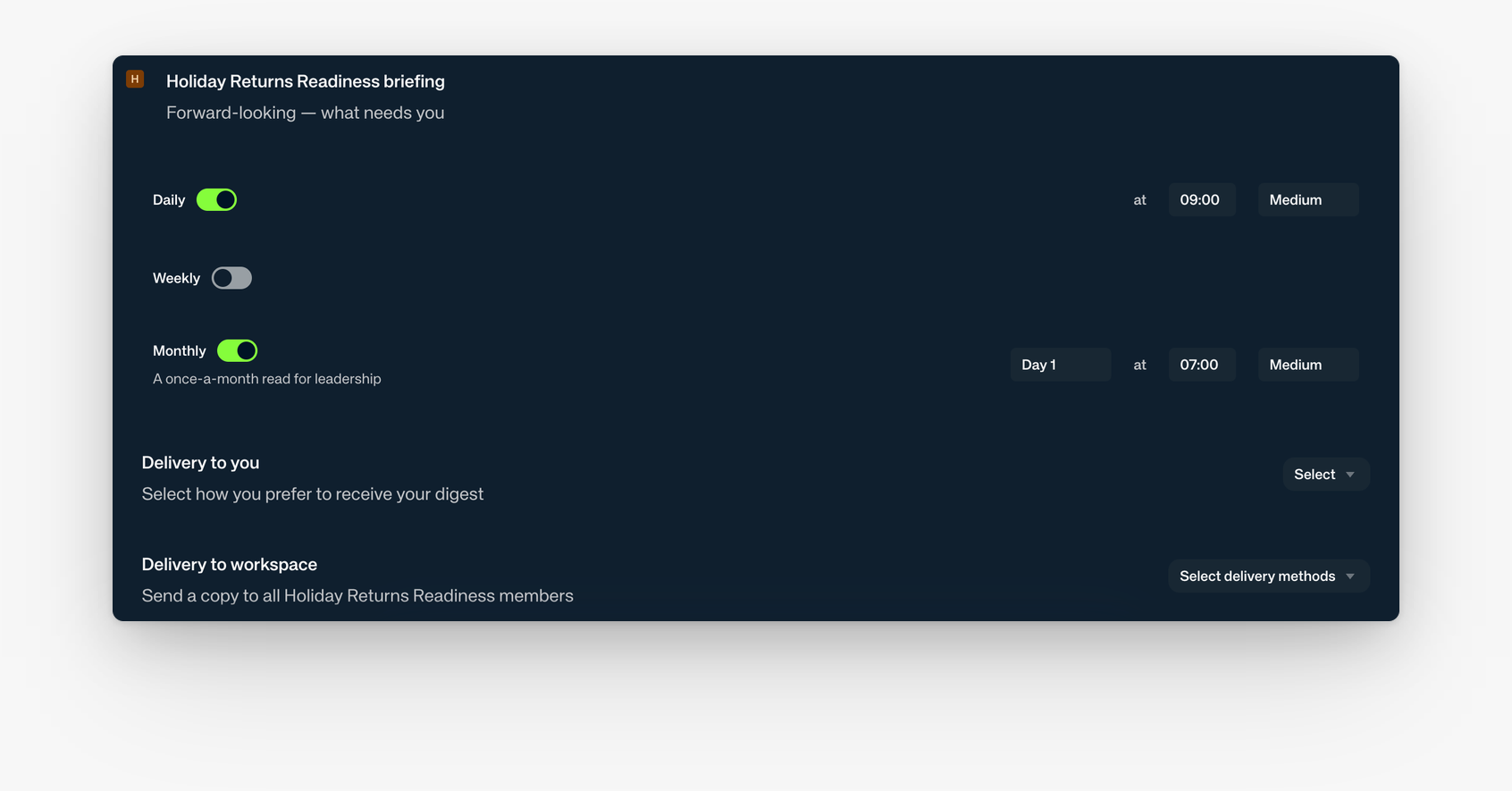
Example Briefs card with Monthly enabled. Your current selections may differ.
Review the delivery controls
When present, review Delivery to you and Delivery to workspace separately. Open each delivery menu and choose from the methods shown there.
The card’s delivery selections apply across its configured Daily, Weekly, and Monthly cadences. Before changing shared delivery, confirm the intended destination and audience with your Workspace Owner.
For channel setup, see Deliver Workspace updates to a Slack channel or Use the In Parallel app in Microsoft Teams.
For personal notifications, see Manage email notifications.