Use the In Parallel app in Microsoft Teams
Chat with In Parallel, receive notifications, and connect a Microsoft Teams channel to a Workspace.
Updated 14 August 2026
The In Parallel Teams app brings personal chat, notifications, and connected Workspace channels into Microsoft Teams. It is separate from both Microsoft 365 Copilot and meeting capture.
| Experience | What it does |
|---|---|
| In Parallel Teams app | Provides personal chat and notifications, and can work in connected Teams channels. |
| Microsoft 365 Copilot agent | Lets Microsoft 365 Copilot use an approved set of In Parallel tools in a Copilot chat. |
| Teams meeting capture | Lets the Recorder join a Teams meeting found through your connected calendar; the Teams app is not required for this. |
Before you start
- Your Microsoft administrator must make the In Parallel app available in your organization’s Teams environment.
- You need an In Parallel account whose email address matches the Microsoft account signed in to Teams.
- The In Parallel account matched to that Microsoft email address must be a member of the Workspaces you want to use.
- To connect a channel to a Workspace, you need Owner access to that Workspace and a connected Outlook Calendar under Settings → Account → Connections.
Find and open the Teams app
-
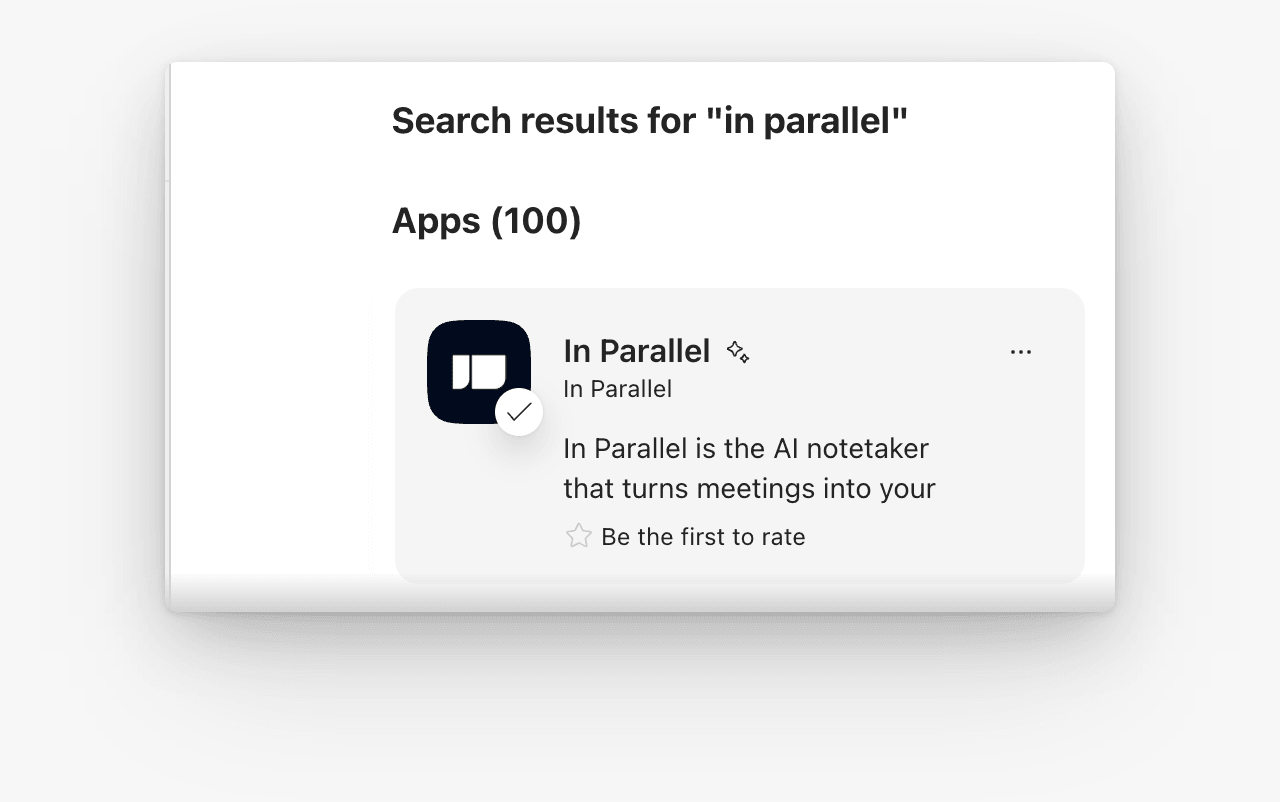
In Teams, open Apps, search for In Parallel, and select it from the results.
-
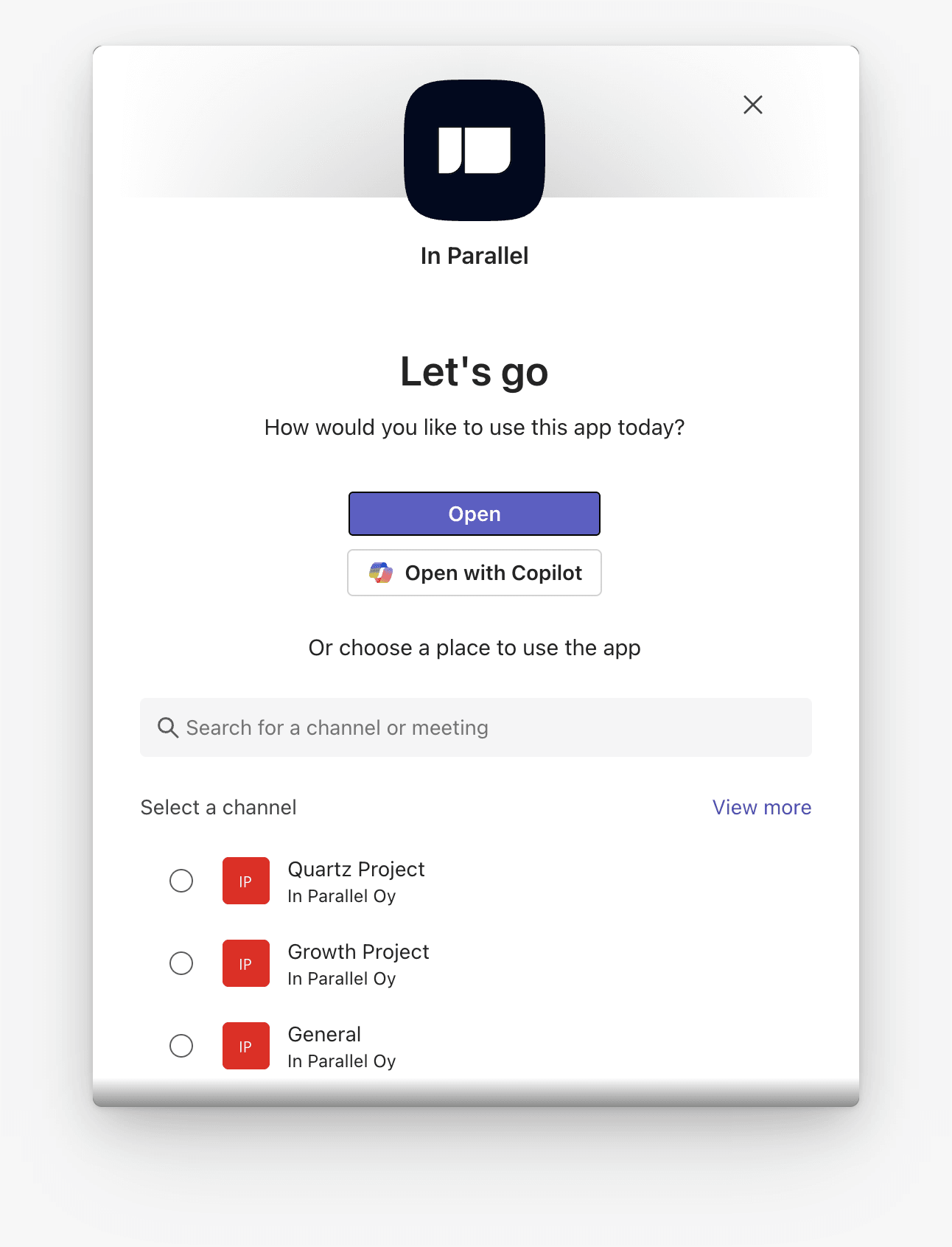
Choose Open for the personal Teams app, Open with Copilot for the separate Microsoft 365 Copilot agent, or select a team and channel to add In Parallel to a channel.
Open the personal app
-
Open In Parallel from the Teams app bar. If it is not visible, find it under More apps.
-
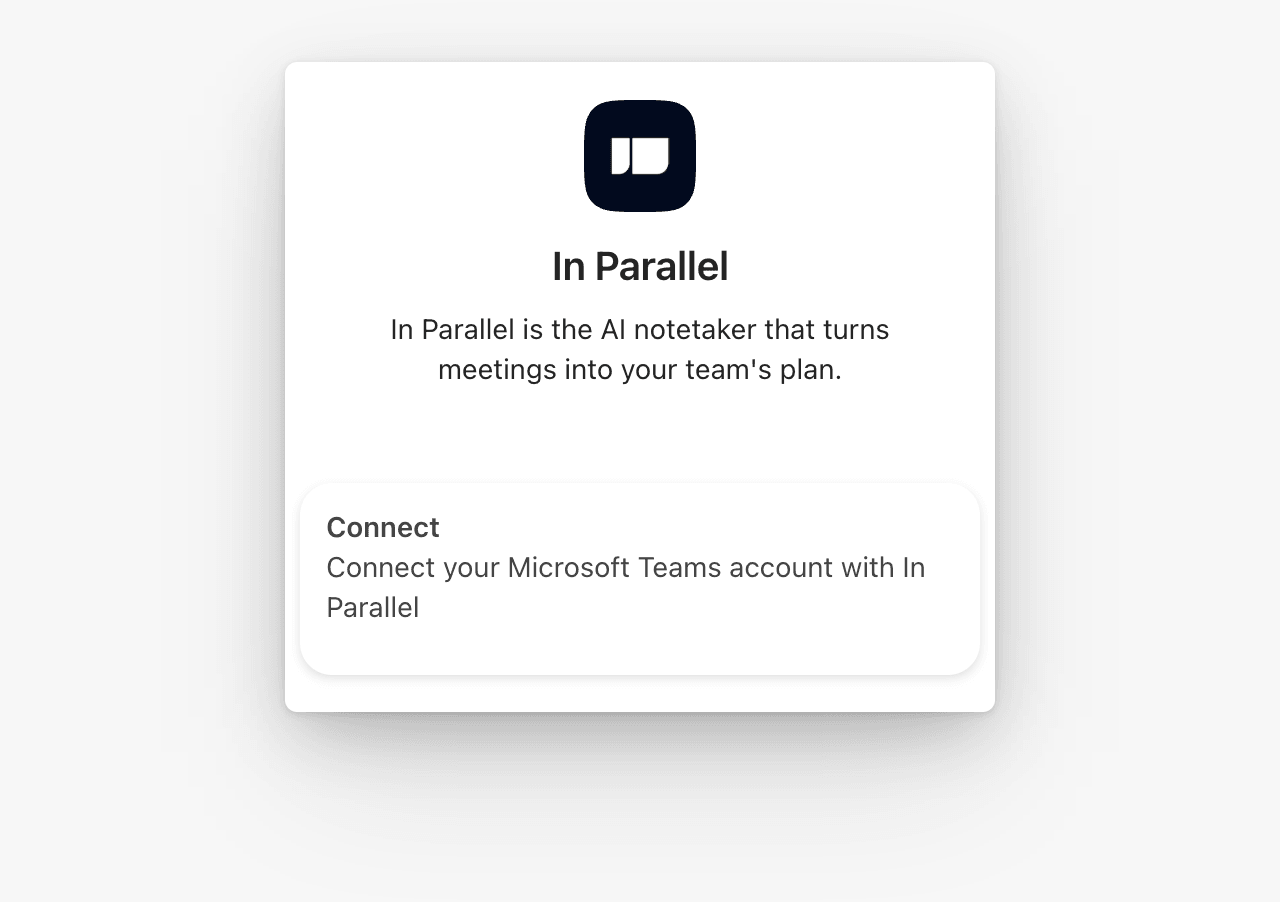
Select Connect. You can also type
connectin the chat.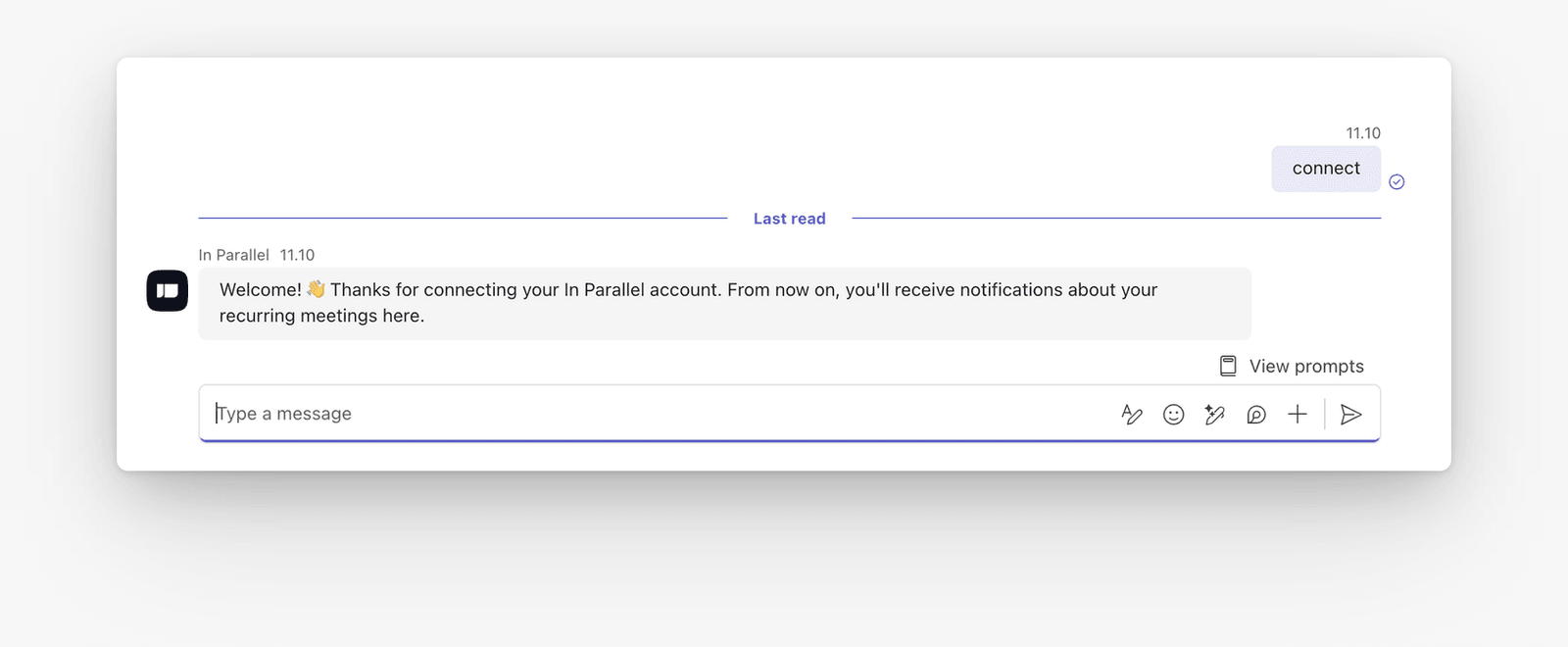
-
Wait for the confirmation that Teams is connected, then ask a question such as, “List my Workspaces.”
-
To keep In Parallel in the Teams navigation, open the app’s menu and select Pin.
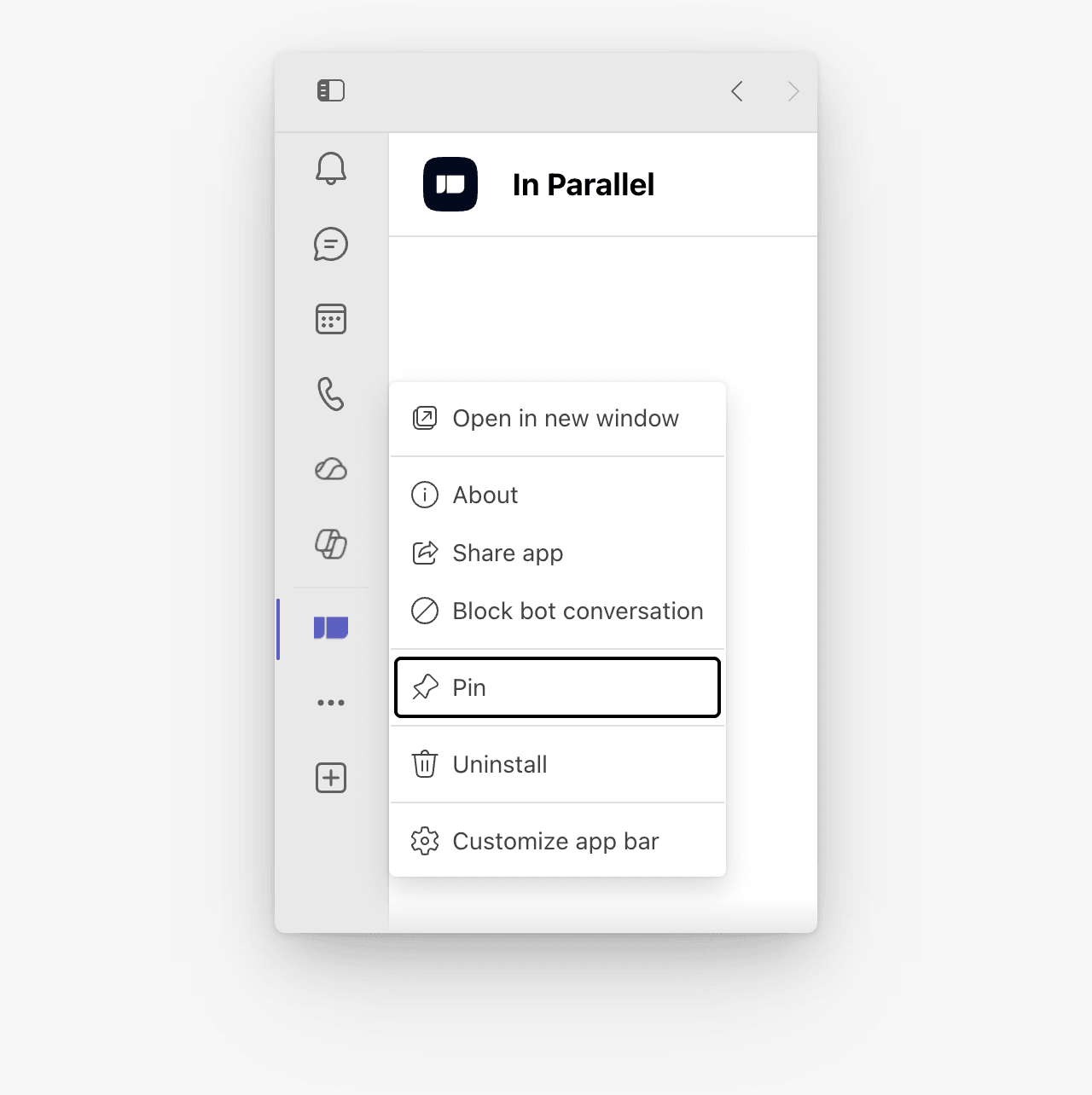
The app uses the Microsoft account signed in to Teams and matches its email address to your In Parallel account. Its answers are limited to the In Parallel access associated with that account.
The personal app is also where enabled In Parallel notifications can arrive. A delivered notification does not automatically become conversation context for the assistant. When asking a follow-up, name the Workspace, meeting, or output instead of referring only to “the message above.”
Connect a Teams channel to a Workspace
Workspace channel connections determine which Workspace context and deliveries belong in a Teams channel.
- Add the In Parallel app to the intended team in Microsoft Teams. The channel picker cannot offer that team’s channels until the app is available to the team.
- In In Parallel, open your user menu and select Settings.
- Choose the Workspace, then open Meetings & channels.
- Under Workspace channels, select Edit Teams channels.
- Select the intended channel and save the connection.
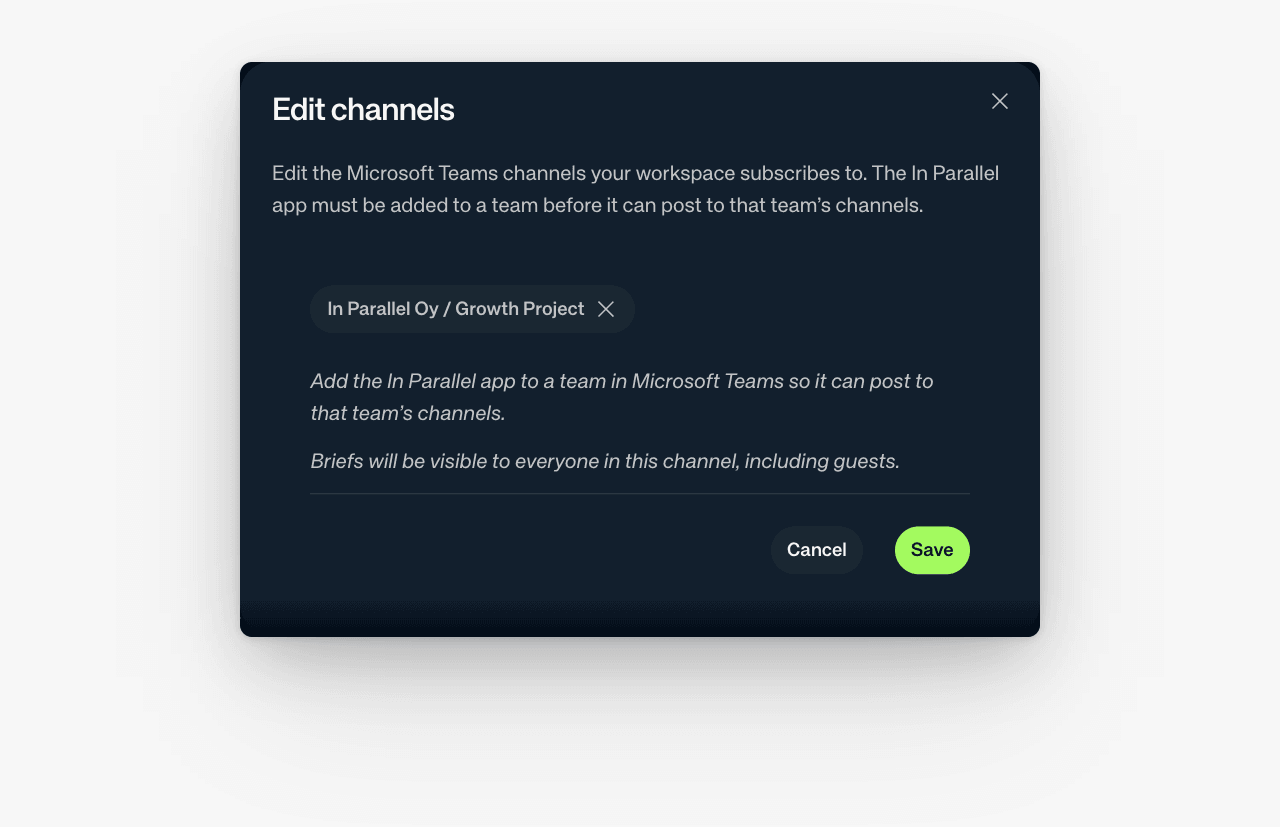
For a private Teams channel, add the In Parallel app to the channel as well:
- In Teams, open the channel’s menu and select Manage channel.
- Open Apps.
- Add In Parallel.
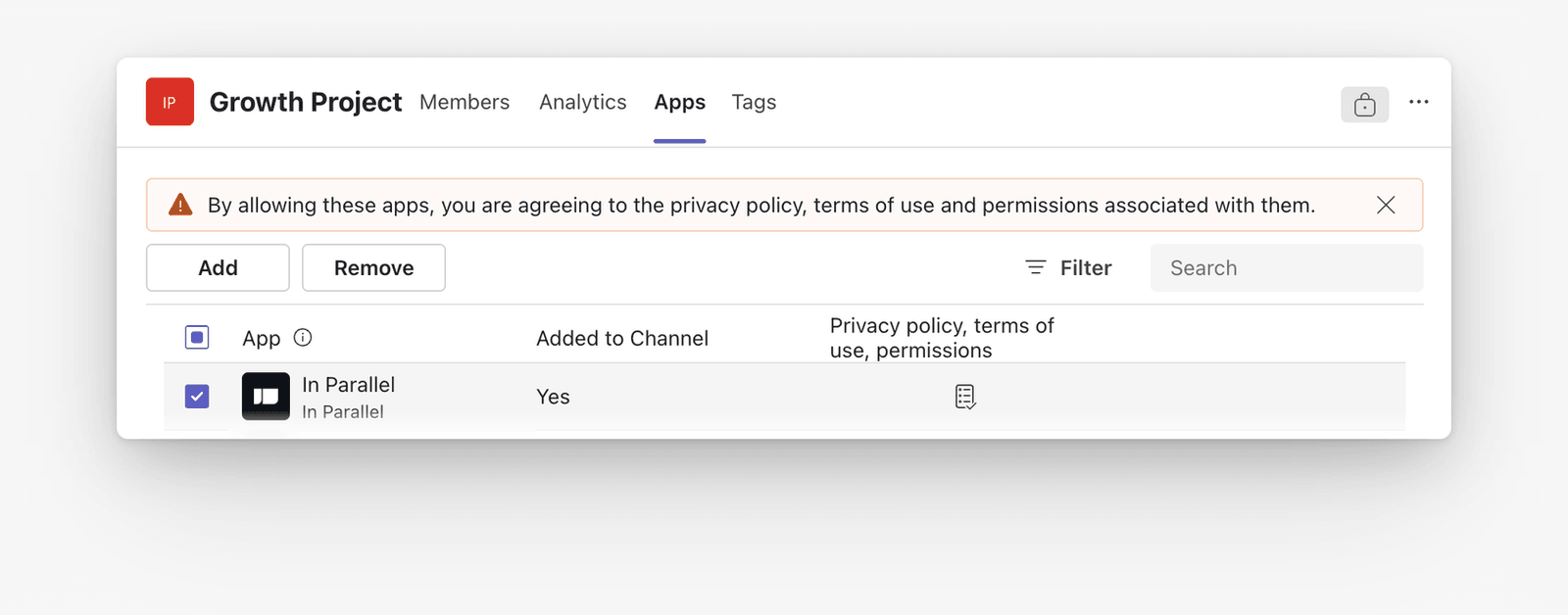
An organization-level installation makes the app available in Teams. Private channels also require the channel-specific addition above.
Chat in a connected channel
Mention @In Parallel in every channel message that should receive a reply from the app. The app does not automatically respond to an unmentioned follow-up in the thread.
Channel conversations are visible to channel members. Check both the Teams channel membership and the In Parallel Workspace’s confidentiality before connecting them or enabling shared delivery.
Capture observations from a channel
Under Settings → [Workspace] → Meetings & channels, turn on Capture observations from channels when In Parallel should read every subscribed channel and turn supported messages into observations for that Workspace. Enabled observation kinds determine which signals it looks for.
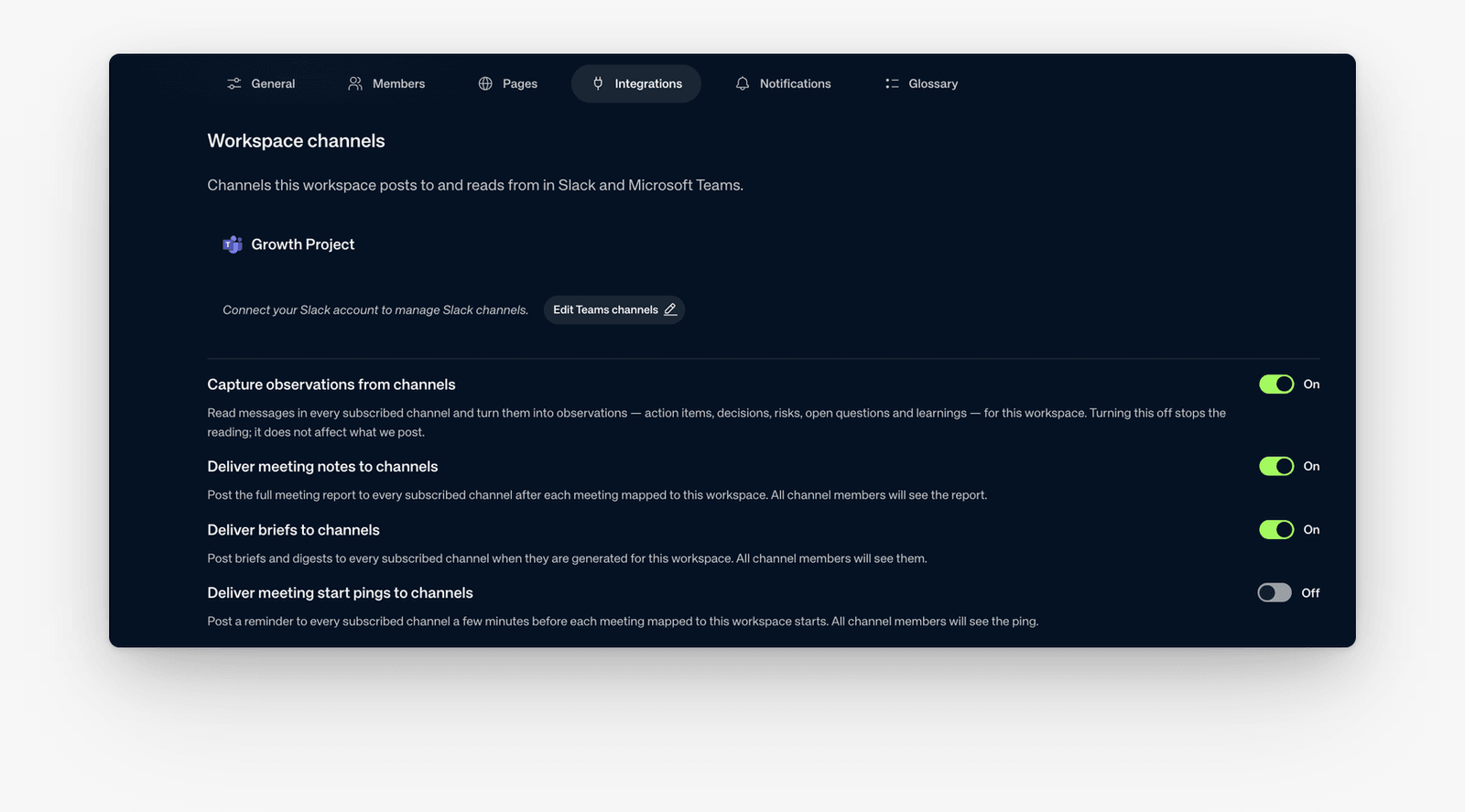
Earlier screen shown: the settings tab is now Meetings & channels. Meeting-start pings shown in this image are not part of the current controls.
Turning capture off stops reading new channel messages. It does not change the messages In Parallel posts to the channel.
Deliver notifications to Teams
Personal notification preferences are under Settings → Account → Notifications. Workspace Owners configure brief schedules under Settings → [Workspace] → Notifications, using Delivery to you and Delivery to workspace.
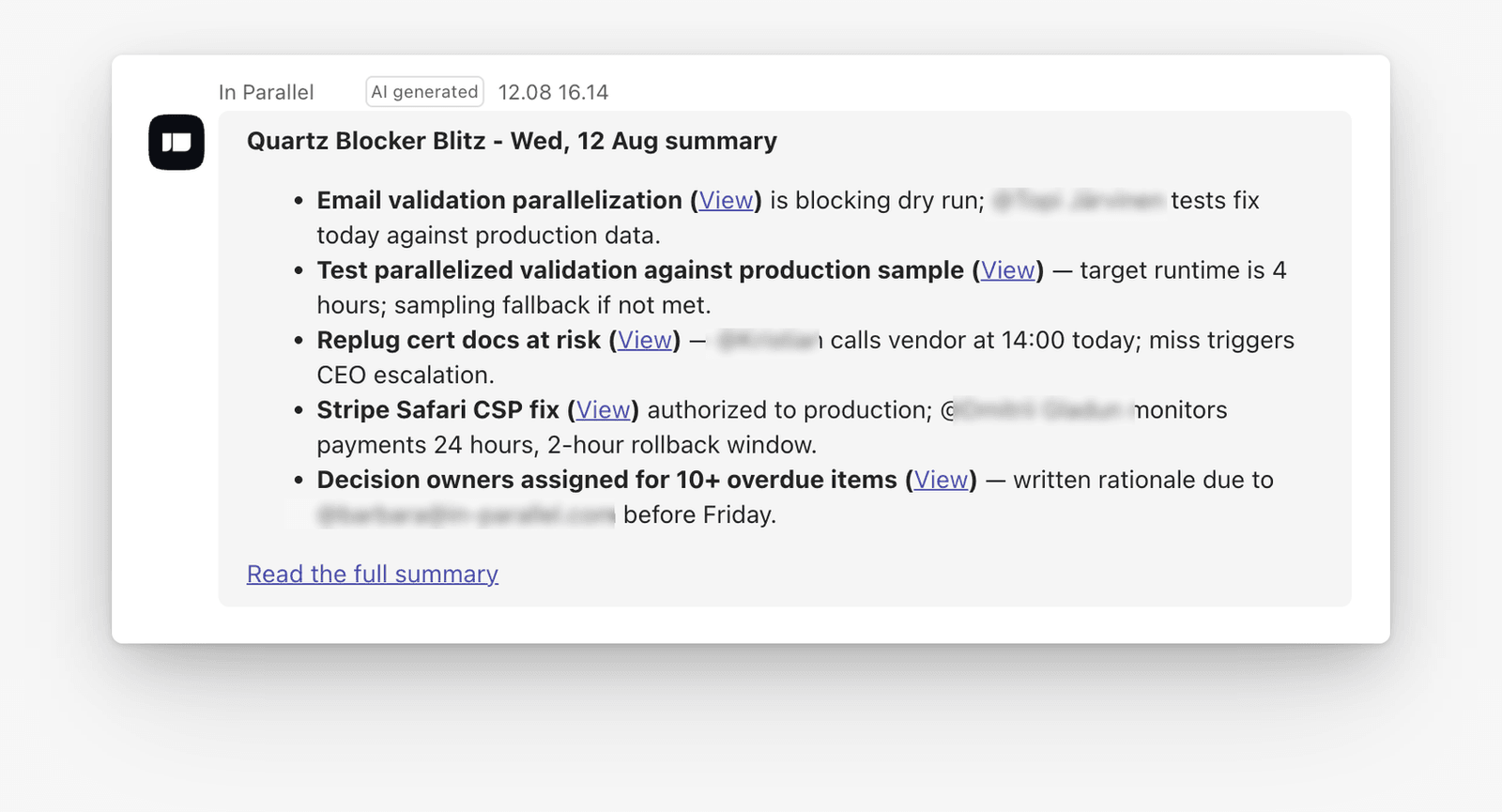
Connected Workspace channels can receive meeting notes and briefs. Review the channel connection and the separate Deliver meeting notes to channels and Deliver briefs to channels switches when an expected message does not arrive. Capture observations from channels controls reading messages into Workspace context; it does not enable posting.
Channel deliveries are visible to everyone in the channel, including guests.
See Configure Workspace briefs for the schedule and delivery controls.
Troubleshooting
The app says I do not belong to a Workspace. Confirm that the Microsoft email address shown in Teams belongs to an In Parallel member of that Workspace. Access granted to a different Google- or email-based account does not automatically transfer to the Microsoft account.
I cannot find a Teams channel in Workspace settings. Confirm that your Outlook Calendar is connected under Settings → Account → Connections and that you are a Workspace Owner. For a private channel, also add the In Parallel app under the channel’s Manage channel → Apps settings.
The app does not reply in a channel. Mention @In Parallel in the message. If the channel is private, confirm that the app was added to that channel and that the channel is connected to the intended Workspace.
The personal chat does not reply to connect. If the chat looks normal, try blocking and then unblocking the In Parallel conversation in Teams before sending connect again. See Troubleshooting: Integrations for the symptoms and recovery steps.
The Recorder does not join a Teams meeting. Check the calendar connection and the meeting’s Recorder joining setting. Meeting capture does not depend on the In Parallel Teams app.
Related
- Using In Parallel with Microsoft 365 Copilot
- Connect your calendar, notifications, and AI tools
- Configure Workspace briefs
- Troubleshooting: Integrations