Get started with In Parallel
Connect your calendar, set up one focused Workspace, and prepare your first meeting with the Recorder, using Getting started on Home.
Updated 29 September 2026
The fastest way to understand In Parallel is to prepare one real meeting, let the Recorder capture it, and review the result. You do not need to configure every goal, page, integration, or AI tool before the first meeting.
Plan about 30 minutes for setup.
Until you finish onboarding, Home shows a Getting started section that walks you through these steps. You can also do each step from its usual place in the product, which is described alongside.
Select Dismiss to fold the section into an Onboarding bar that shows how many tasks are done. Select Continue to open it again. The folded state is remembered only in the browser where you folded it. The section goes away on its own once your calendar is connected and your first Workspace exists.
1. Connect your calendar
Your calendar is the one connection In Parallel needs. Connect Google Calendar or Microsoft Outlook: it lets In Parallel see your meetings, lets the Recorder join them, and lets In Parallel suggest a first Workspace from them.
If you sign in with Google or Microsoft, In Parallel asks for calendar access on the same screen. If you skipped it, select Connect next to your calendar in the Connect your calendar to see your next meetings step of Getting started, or connect a calendar under Settings → Account → Connections. See Connect your calendar, notifications, and AI tools for provider-specific guidance.
Once your calendar is connected, Your next meetings lists upcoming meetings with other people. The Recorder is set to join every meeting with two or more people; switch Recorder joins off for any meeting you want to keep private, and tell participants before the Recorder joins (step 4). To change which meetings the Recorder joins automatically, open Settings → Account → Recorder and use Automatic joining: the Internal and External switches set the defaults, and Rules add exceptions. By default, Notes arrive by email about five minutes after each call ends; you can change this under Settings → Account → Notifications → Meeting notes.
2. Create one focused Workspace
In Set up your first workspace, In Parallel suggests a Workspace when several of your meetings look like one team. Select Make it a workspace to create it, or Not a team to dismiss the suggestion. If there is no suggestion, select Create workspace manually.
You can also create one yourself: open the left navigation (on a narrow screen, select Open menu first), find Workspaces, and select Add workspace (the plus button). See Create and choose a Workspace.
Enter the Workspace name, select Continue, and describe its Purpose. Continue to the preview, review Structure and Create under, and select Save workspace. Members of a parent Workspace inherit access to descendants, so choose the parent deliberately. A good first Workspace is one team, project, program, account, or mission with a coherent owner and meeting cadence.
After saving, Add workspace data lets you attach meetings or upload documents. Select Done if you want to add those sources later. Review the new Context page generated from your Purpose.
Keep the first setup small. Add only the members and context needed for the meeting you plan to capture.
3. Connect Zoom or Slack, and book an intro
Getting started also offers two extras. Slack and the intro are optional; connect Zoom if your meetings use Zoom.
- Connect your tools — select Connect next to Slack to get notifications there, or next to Zoom so the Recorder can join Zoom meetings on your behalf. If your meetings use Zoom, connect it before the first one. You can connect them later under Settings → Account → Connections.
- Book a meeting with the In Parallel team — select Book to schedule a 30-minute intro.
4. Tell participants about the Recorder
Before the meeting, tell participants that the In Parallel Recorder will join and explain how your organization uses the recording, transcript, Notes, and Actions.
Follow your organization’s consent and privacy requirements. If participants cannot be informed in advance, leave the meeting’s Recorder switch off (Recorder not invited) until they can be.
5. Connect the meeting to the Workspace
- Open Meetings from the navigation.
- Select the upcoming meeting.
- Use Add workspace or Publish to in the meeting details.
- Choose the Workspace that should receive the meeting context.
If the connection flow offers a series option, check whether you are connecting one meeting or the series before confirming.
6. Check that the Recorder is invited
Confirm that the Recorder will join the meeting. On Home, the switch is Recorder joins in Your next meetings; in the Meetings timeline, the upcoming meeting shows Recorder invited when its switch is on.
The toggle is available on upcoming meeting cards. Check it again before the meeting if the calendar event, organizer, or conferencing link changes.
7. Review the meeting result
After processing finishes, open the meeting. Depending on what was captured, the meeting can show:
- Notes — the readable meeting output
- Transcript — the source record when a transcript is available
- Actions — reviewable follow-ups prepared from the meeting
Identify one useful outcome: a decision, action, risk, question, or learning that should remain connected to the Workspace. Under Actions → Workspace updates, review each proposal before using Publish all. The card names its destination Workspace.
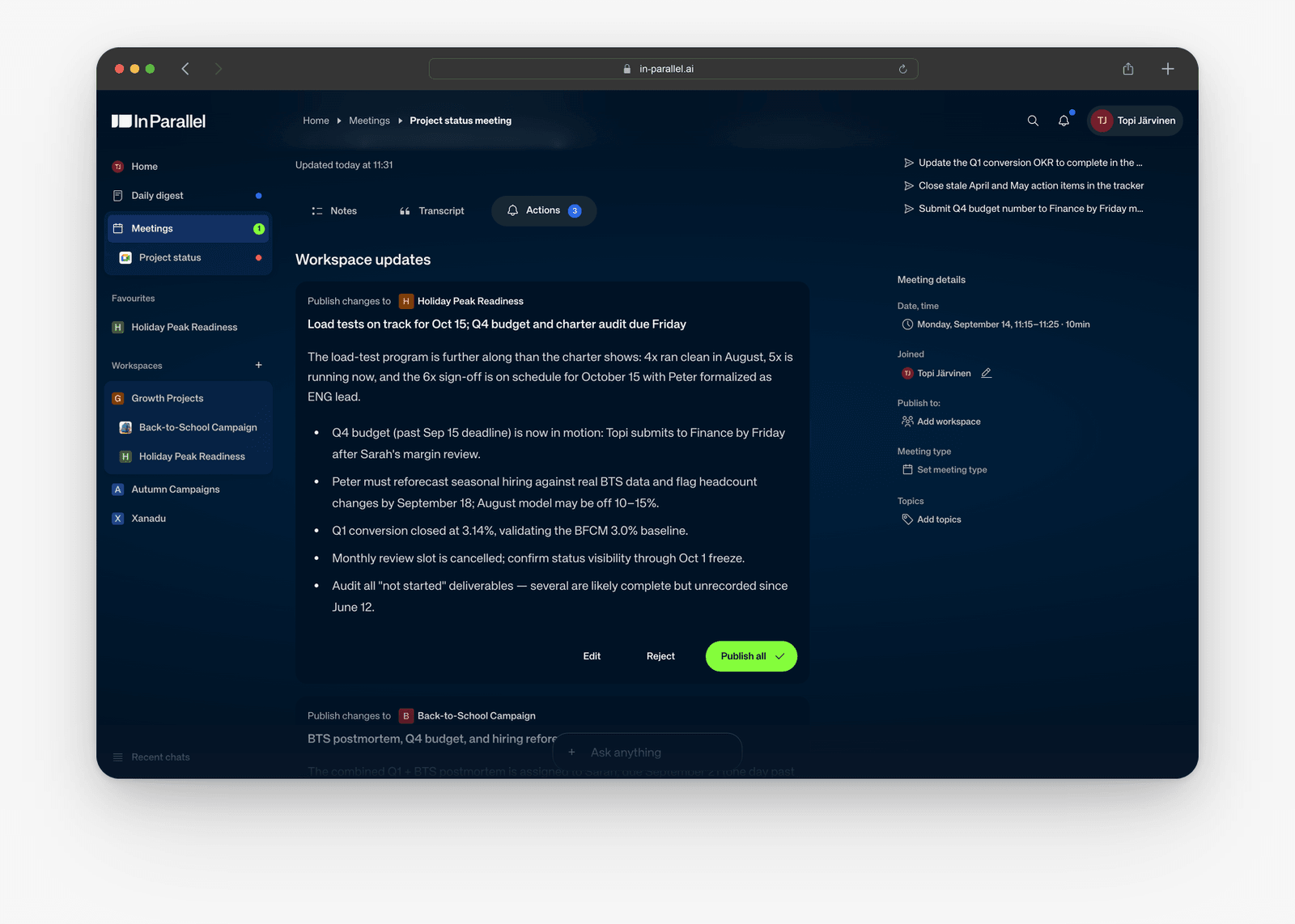
See Review and publish meeting updates.
If a tab is empty, confirm that the Recorder joined successfully and that processing has finished before assuming the meeting contained no useful context.
8. Continue from Home or a Workspace page
Open Home and ask a question in Ask anything, or choose a suggested action such as Morning brief. Use Add context to focus the request on the Workspace you created, then follow a source link in the answer.
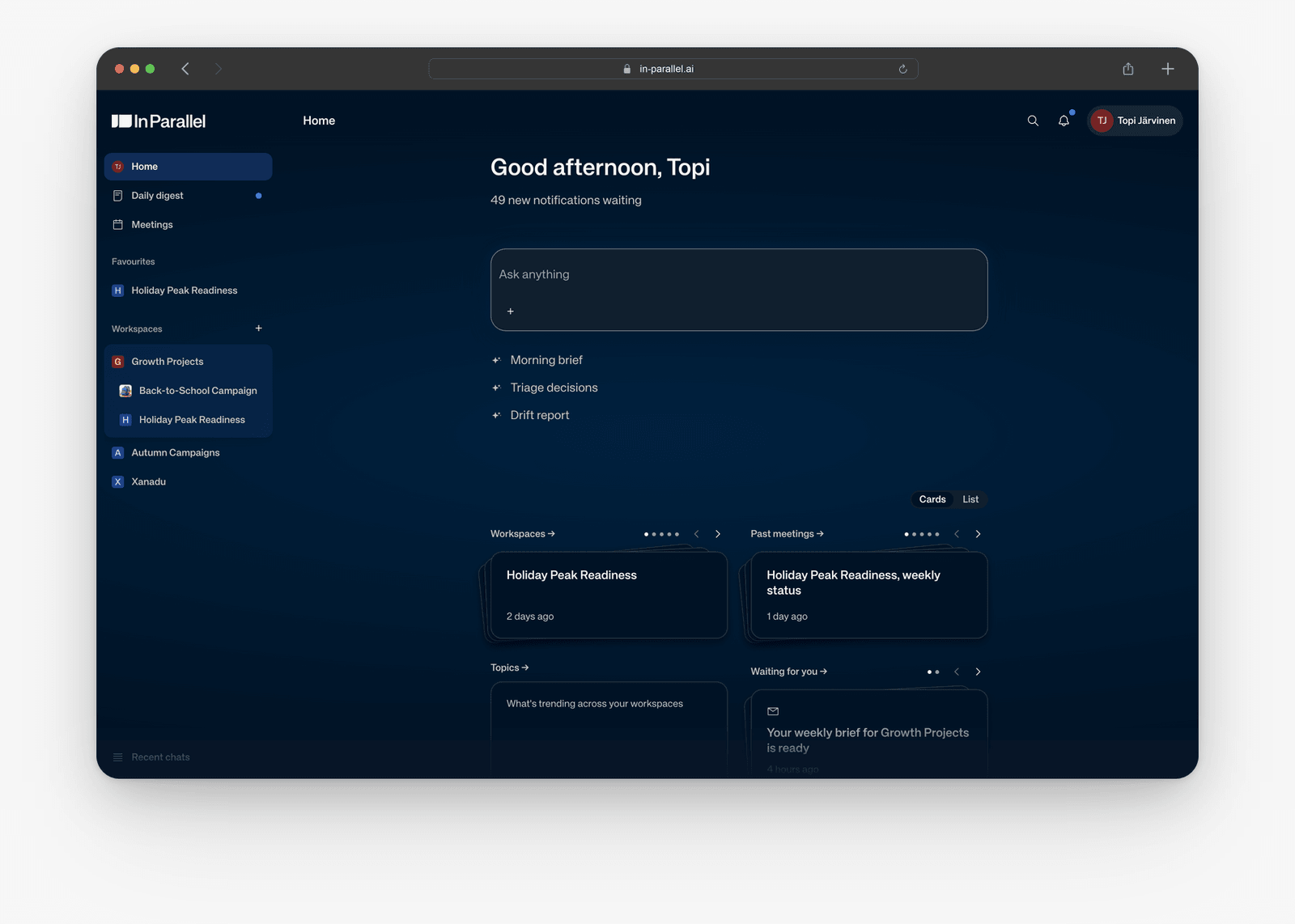
On the Workspace’s home, choose Cards for visual previews or List for compact rows. Use the Pages section to open a maintained page, or select the Pages heading to browse them all. Use About this page to understand what a page draws on, then use Ask about this page or Send to AI to continue from that context. Send to AI names your preferred assistant, such as Send to Claude.
You can add more pages, goals, meetings, and integrations after the first loop is useful. More setup is not the goal; reusable context is.
You’re ready when
- Your calendar is connected.
- One focused Workspace exists with the right members.
- Participants know the Recorder will join.
- One upcoming meeting is connected to the Workspace.
- The meeting shows Recorder invited.
- You can find the meeting’s Notes, Transcript, or Actions after processing.
- You have followed at least one source link or reused the context in Chat.
Related
- Connect your calendar, notifications, and AI tools
- Create and choose a Workspace
- Connect a meeting to a Workspace
- Review meeting Notes and Actions
- Use In Parallel Chat
- Adopt maintained pages in an existing Workspace
- Troubleshooting: Getting Started & Setup