Create and choose a Workspace
What Workspaces are, how to choose a useful boundary, and where to create one in In Parallel.
Updated 29 September 2026
A Workspace is the boundary around a team, project, program, operation, or account in In Parallel. It groups the people, meetings, pages, documents, and other context that belong together.
Before you create one
Start with the area where you most need a shared, current understanding of the work. A useful Workspace normally has:
- one accountable owner or a clearly accountable leadership group;
- a coherent set of outcomes and priorities;
- meetings and source material that refer to the same area of work;
- members who should share access to that context.
If two streams have different owners, cadences, or success measures, use separate Workspaces. A very broad Workspace makes briefings, pages, and AI answers less focused.
Create a Workspace
These steps cover Blank workspace creation when Add workspace is available in your account. If it is unavailable, contact your Workspace Owner or Company Admin.
- Open the left navigation. On a narrow screen, select Open menu first.
- Find Workspaces.
- Select Add workspace (the plus button).
- Enter a Workspace name.
- Select Continue.
- Enter the Purpose: what the Workspace is responsible for, its scope, and how the group works. Keep the Purpose to 500 characters or fewer to continue in this form.
- Select Continue to open Your new workspace is almost ready.
- Review the name, Purpose, and Structure preview. Use Edit workspace, then Done, to revise the name; edit Purpose in the preview when needed.
- Use Create under to choose Top level or search for a parent Workspace.
- Review the access implications of the parent you chose.
- Select Save workspace when the proposal is right. Select Cancel to leave without saving.
Name-entry example
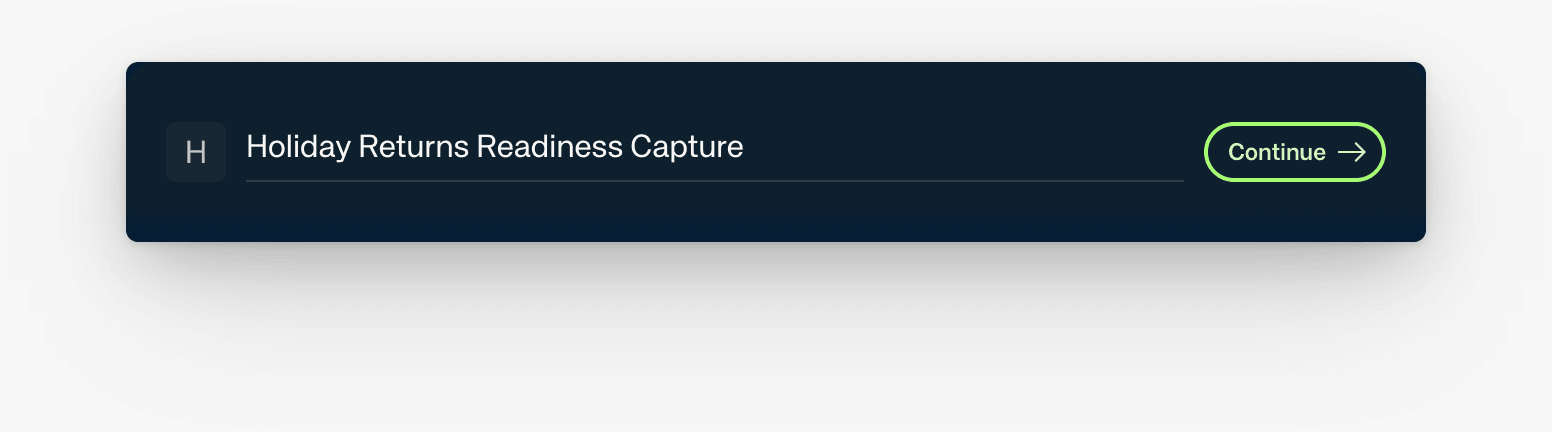
Name-entry closeup; the surrounding creation prompt is outside this crop.
Purpose-entry example
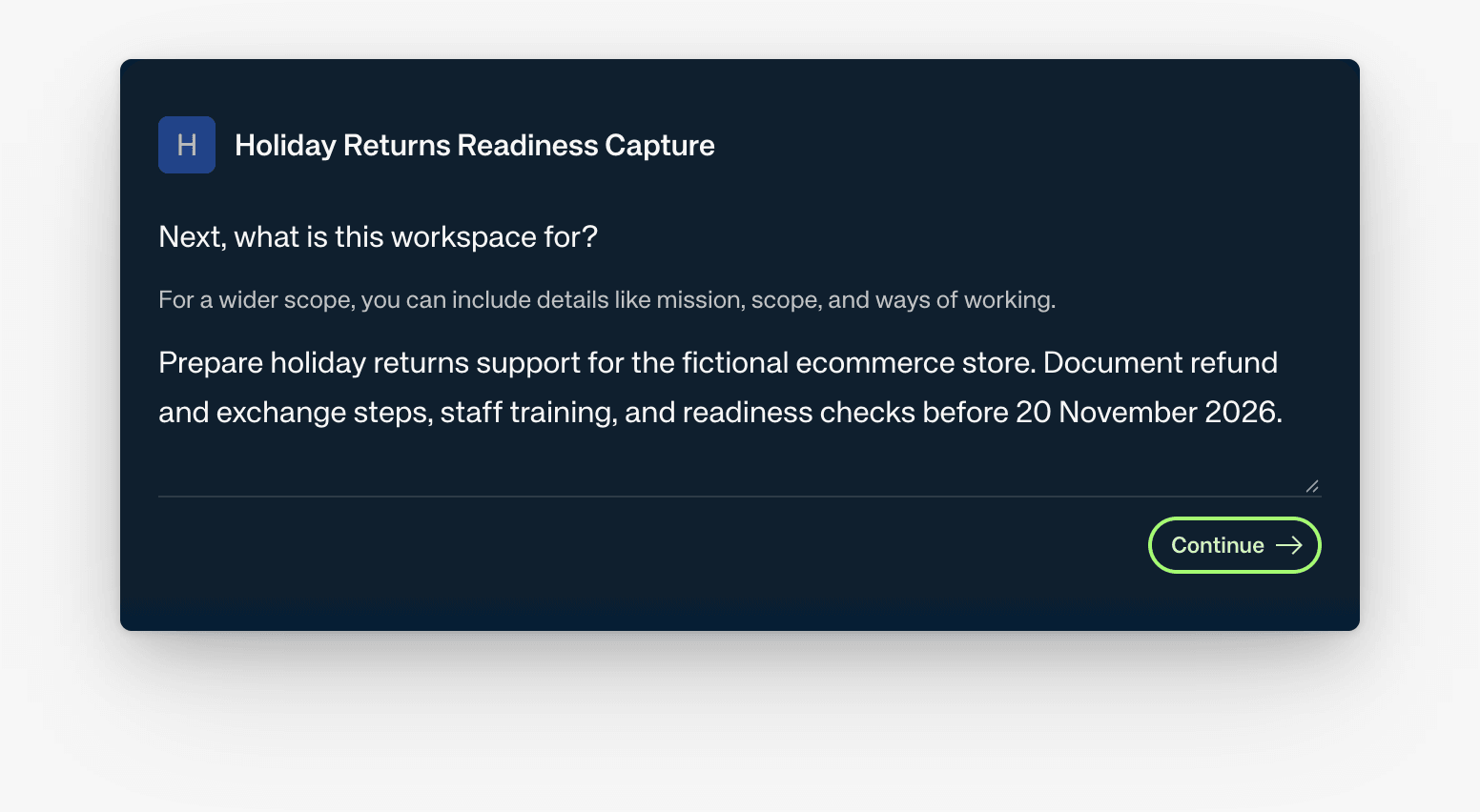
This is a short standalone Purpose example. Include agreed owners and workflows in your own input; this image is not the input that produced the fuller Context example in the pages articles.
Both the name and Purpose are needed before you can continue. Review the pages listed in your Structure preview. These steps cover the Blank workspace flow; they do not describe choosing or applying another template.
If a Workspace with the same name already exists under the selected parent, the preview shows A workspace named [name] already exists here and disables Save workspace. Change the proposed name or review the parent choice before continuing.
Use a name your team already recognizes, such as Platform Migration or Revenue Operations. A useful Purpose might be: “Coordinate the platform migration across Engineering and Support. Track the rollout, risks, decisions, and weekly readiness review.”
Before saving, confirm the intended members and audience with your Workspace Owner or Company Admin. If you are unsure who should be able to open the new Workspace, resolve that before saving.
After saving, Add workspace data offers meetings and document uploads as sources. Choose relevant sources, or select Done to finish without attaching any yet. The new Workspace opens with a Context page based on the Purpose you supplied. Review the generated mission, outcomes, roles, and working agreements; sections without enough information can remain undefined.
After saving, review the Workspace’s settings for type, parent, appearance, access, members, pages, meetings and channels, notifications, and glossary. General links to the Context page, whose opening explains what the Workspace is for.
Use the Workspace home
Open a Workspace from Workspaces in the left navigation. Workspace home brings together the shared context you need to understand the current situation and continue the work.
From Workspace home, you can:
- ask a question in the composer, with the Workspace already selected in the context chip;
- choose a suggested prompt, such as What moved this week?;
- use Sections to open Briefings, Past meetings, Pages, or Topics;
- open Pages to find the Context page and other maintained pages; or
- continue in your preferred AI client with the Send to AI button in the page header, which names your selected assistant, such as Send to Claude, or use Copy as prompt.
The items shown depend on the Workspace’s available context and your access. A new Workspace can have fewer cards until meetings, pages, documents, and other sources have been added.
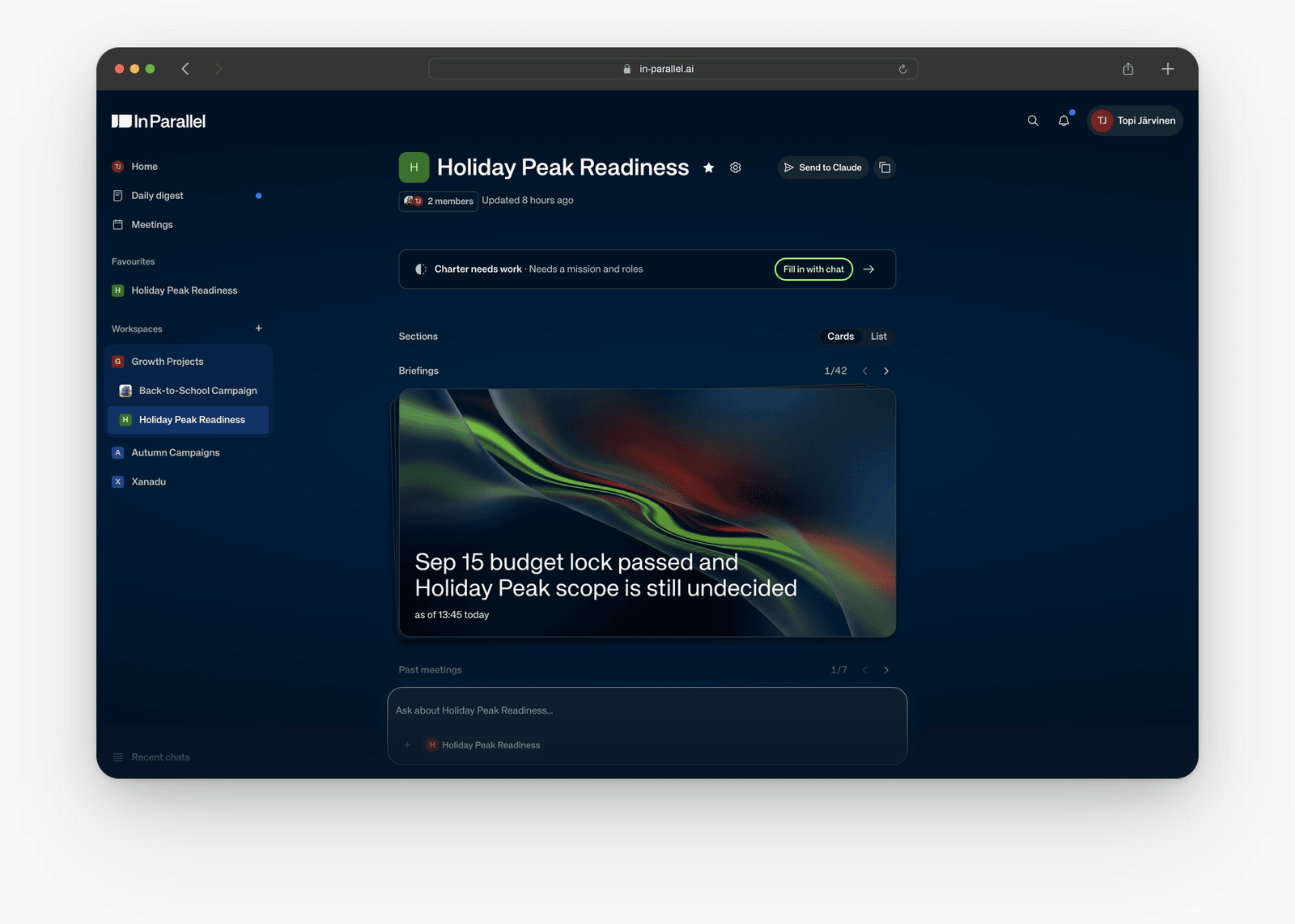
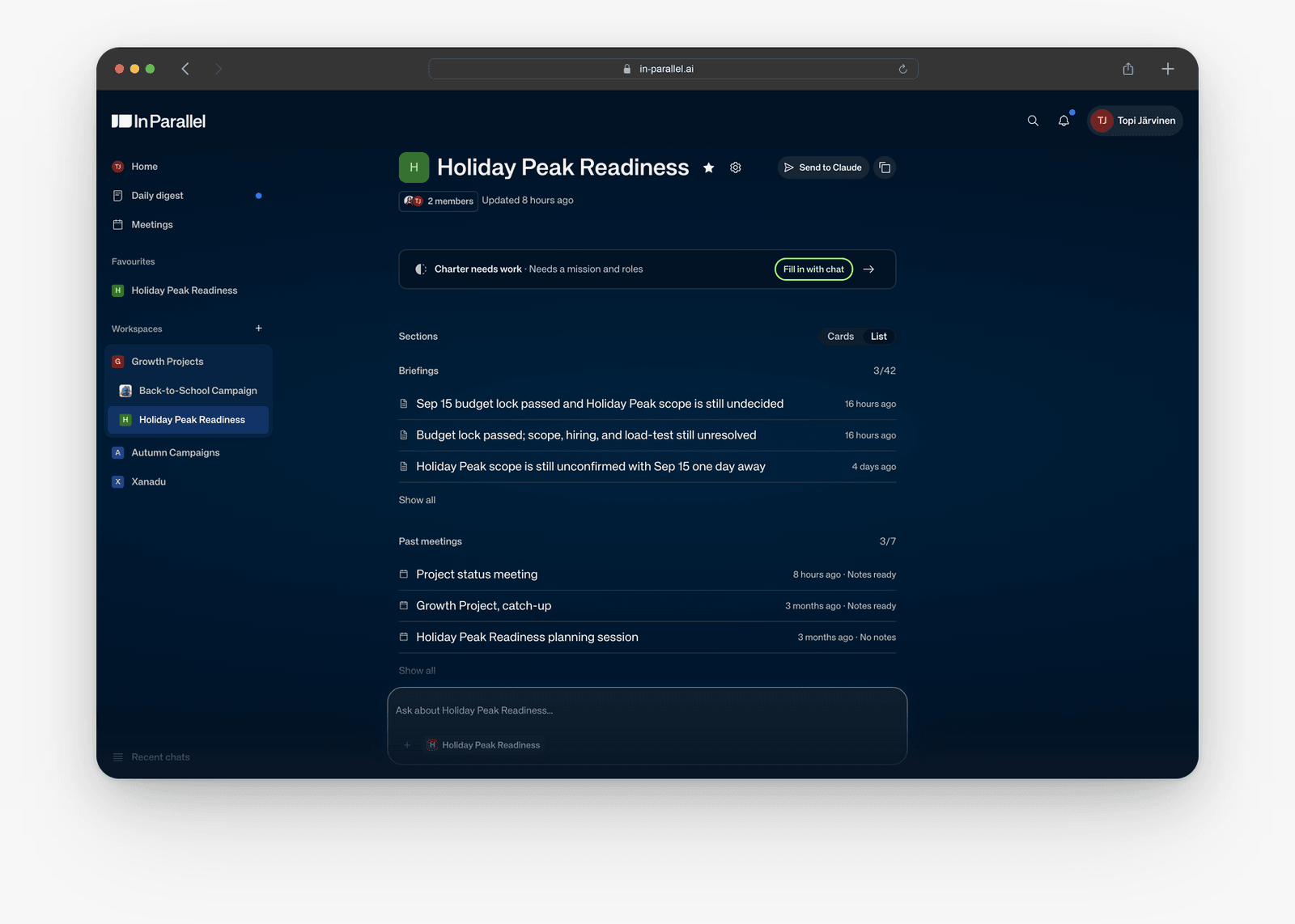
Choose Cards or List beside Sections to change how you browse the Workspace’s content.
Cards view shows a visual preview for each section. Use the arrows to browse the available items, or select a section heading to open that section.
List view shows compact rows so you can scan several items at once. Select a row to open it, or use Show all to reveal more items in a section.
Let In Parallel suggest a Workspace
On Home, Getting started can suggest a first Workspace when several of your meetings look like one team. Select Make it a workspace to create it, or Not a team to dismiss the suggestion. See Get started with In Parallel.
Review the proposal before you accept it. A suggestion built from your calendar can need a clearer name or description than the initial proposal provides.
What belongs in a Workspace
Depending on your account and rollout stage, a Workspace can include:
- a Workspace briefing;
- maintained pages such as Context, Runbook, Objectives, or Retro Log;
- meetings and their Notes, Transcript, and Actions;
- maintained pages for Action Items, Risks, Decisions, and other useful context;
- documents and other connected context;
- Topics and Chat conversations that use the Workspace as context.
These surfaces have different jobs. Meetings provide sourced records of what happened. Pages maintain useful narrative and structured context. Briefings and Chat help people understand and act on that context.
Add context after creation
After creating a Workspace:
- Connect the relevant meeting series or add the Workspace to individual meetings.
- Add members who should see and contribute to the Workspace.
- Add relevant documents and maintained pages.
- Check the Workspace briefing and ask a focused question in Chat to see whether the boundary is producing useful context.
You do not need to reconstruct everything on day one. Start with the sources that explain the work and add context as it becomes useful.
When to create another Workspace
Create another Workspace when:
- ownership is materially different;
- priorities cannot be ranked together;
- meetings cover unrelated work;
- access should differ between the groups;
- briefings or AI answers repeatedly mix unrelated context.
Most teams should start with one well-scoped Workspace and expand after the first one is useful.
Organize parent and sub-Workspaces
Open Settings → [Workspace] → General and use Parent to place the Workspace beneath another Workspace when your account permits it. The left navigation shows a disclosure control beside a parent so you can expand its sub-Workspaces. To move a sub-Workspace back to the top level, open its Workspace actions menu in the left navigation and select Move to top level.
Before changing Parent, review the intended members and audience with your Workspace Owner or Company Admin. For the member-management controls, see Add members to your Workspace.
Frequently asked questions
Can one person belong to multiple Workspaces?
Yes. Home brings together your Workspaces, recent meetings, and items waiting for you from across the Workspaces you can access.
Does every Workspace need the same structure?
No. Use the pages, meetings, documents, and other context that help that group understand and run its work.
Can I rename or reorganize a Workspace later?
Open Settings → [Workspace] → General for the current administration controls. If the control you need is not available there, contact your In Parallel administrator or Customer Success contact.