Adopt maintained pages in an existing Workspace
Choose, add, and review one maintained page in an existing Workspace.
Updated 10 September 2026
Start with one page that solves a real continuity problem. Keep the Workspace’s existing meetings, goals, and context in place while you evaluate it.
Before you start
You need access to the Workspace and permission to add pages or change its page settings. If Manage pages is unavailable, ask your Workspace Owner or Company Admin. Choose a Workspace where you can safely review the generated result before other people rely on it.
Choose the first page
Pick a page that people will return to, such as:
- Context for purpose, responsibilities, and boundaries;
- a Runbook for a recurring process;
- a Roadmap or objectives page for current direction;
- a decision or learning page for durable context;
- a handover page for work that changes owners.
Define the job in one sentence: “Someone should be able to use this page to…” This makes it easier to judge whether the first version is useful.
Check the Workspace first
Before adding material:
- confirm that the Workspace has the right members;
- check that relevant meetings are associated with it;
- identify one authoritative document or source set;
- avoid importing unrelated material simply because it is available.
Choose material relevant to the page’s job and check important claims against the original sources.
Add source material when needed
Open Settings → [Workspace] → Pages. Under Background documents, upload a Word, Excel, PowerPoint, PDF, Markdown, or text file when the page needs context that is not already present in meetings or other Workspace sources.
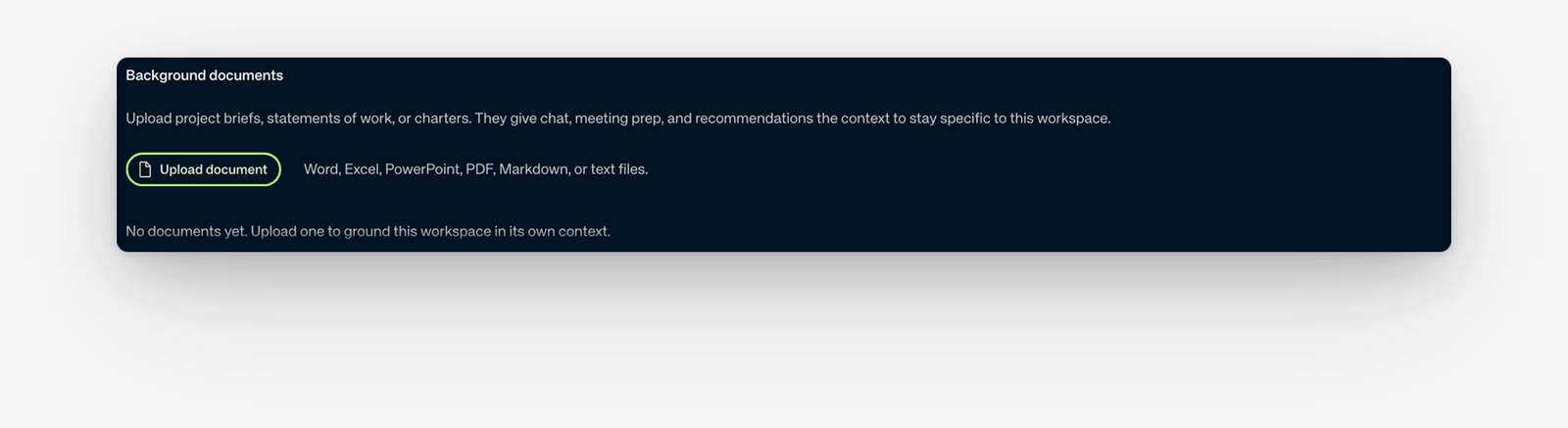
Example: the Background documents panel before a file has been uploaded.
For a document-based starting point, open Manage pages and use Upload a document. After the action finishes, check Background documents and Pages separately. Review any error before retrying.
Uploading a document does not by itself prove that every generated page used it. Review the resulting page and its source context before relying on it.
Create the page
- Open Settings → [Workspace] → Pages.
- Select Manage pages.
- Review the available page types. Use Recommended or All page types when those filters are shown.
- When Add is available for the type that matches the page’s job, select it. Review the resulting page before relying on it.
Use a typed page when its purpose matches the job. Use Custom page when the content needs to stay primarily human-authored or no available type fits. For a document-based starting point, use the upload steps above and check the result.
Review how the page works
Open the page and select About this page. In How this page works, read the page’s stated purpose, perspective, inputs, and update behavior.
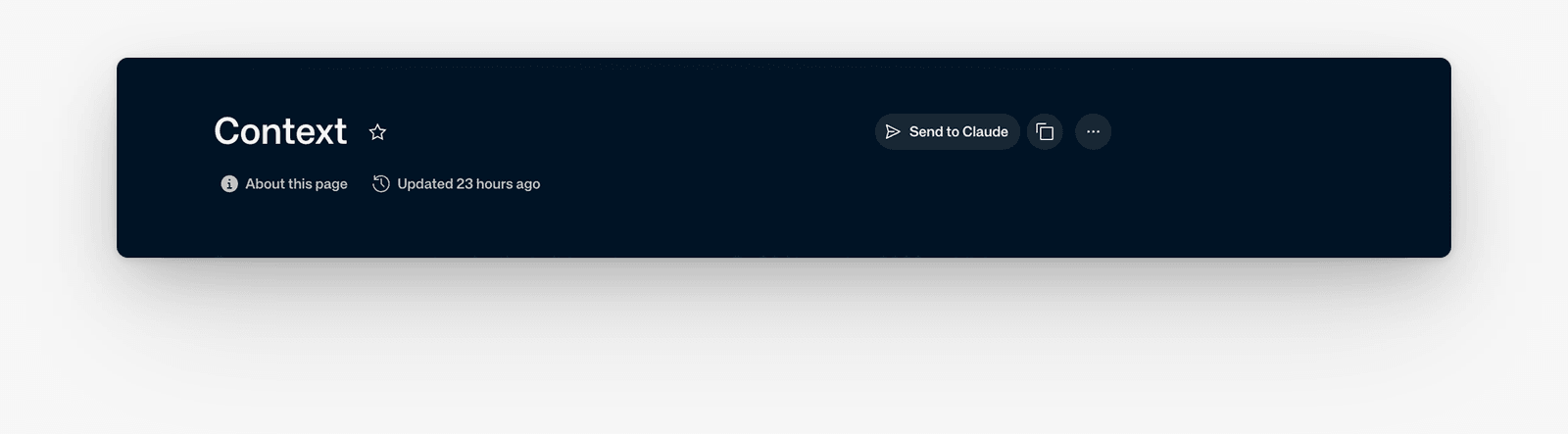
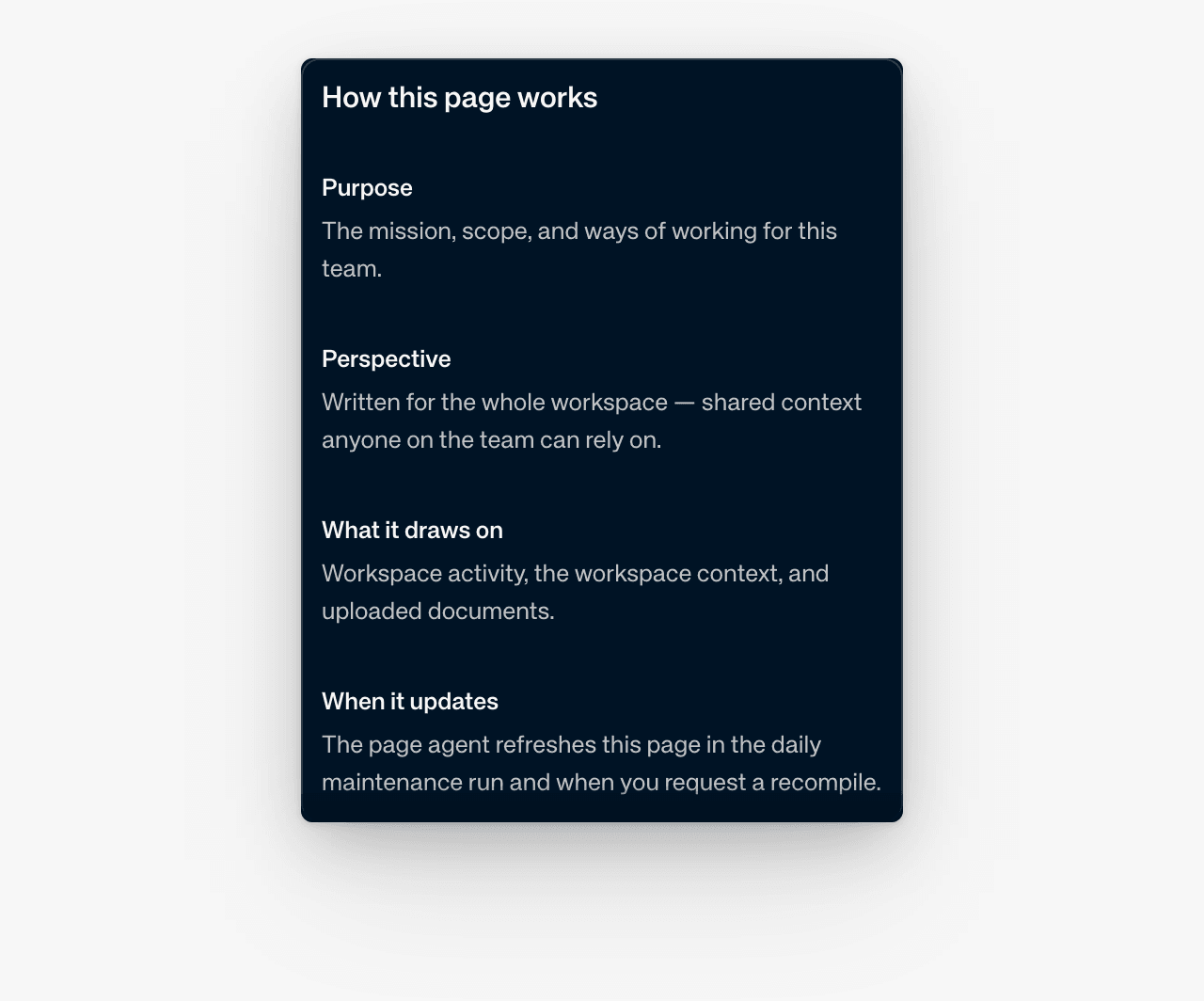
Then review:
- whether the title and opening section make the page’s job clear;
- whether important claims match their sources;
- whether the page includes unrelated or duplicated material;
- whether its audience has access to the Workspace;
- whether the shown update time is recent enough for the intended use.
Select the freshness badge to open Version history when versions are available. Do not treat an Auto-Edited label as human approval of the content.
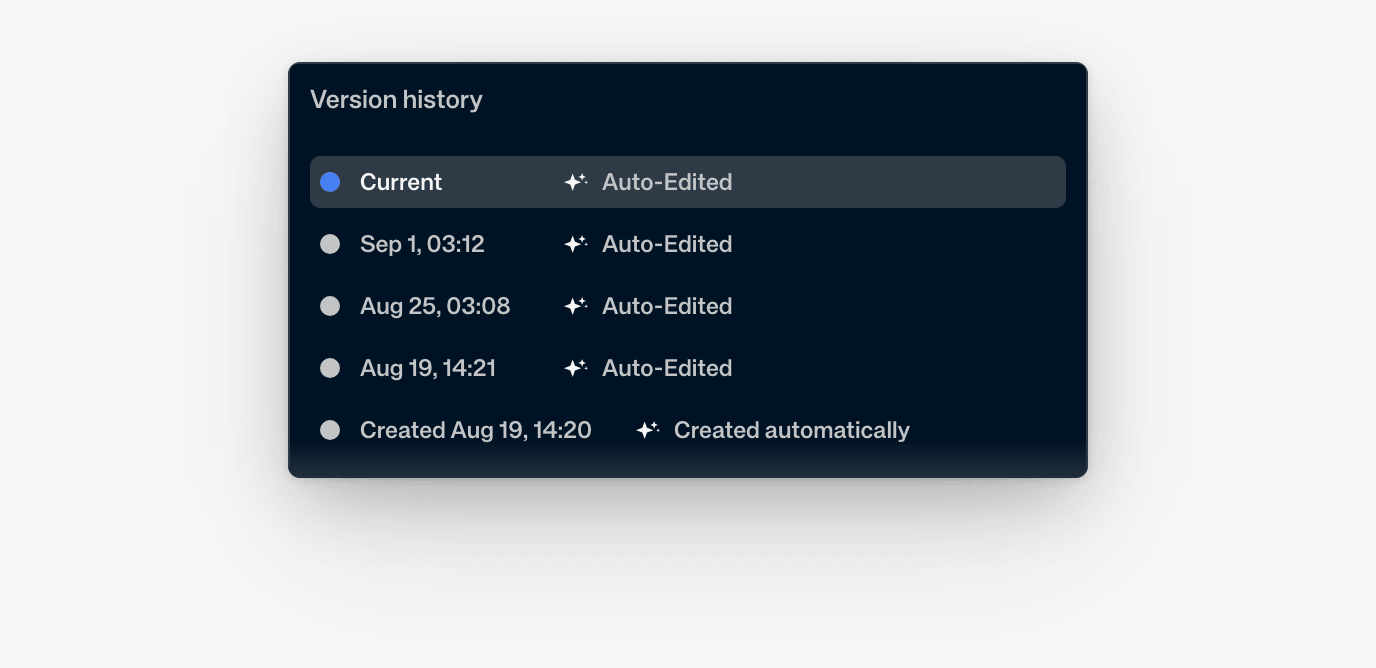
Edit the page directly to correct wording or add framing, then reopen it to check the saved result.
Reuse the page
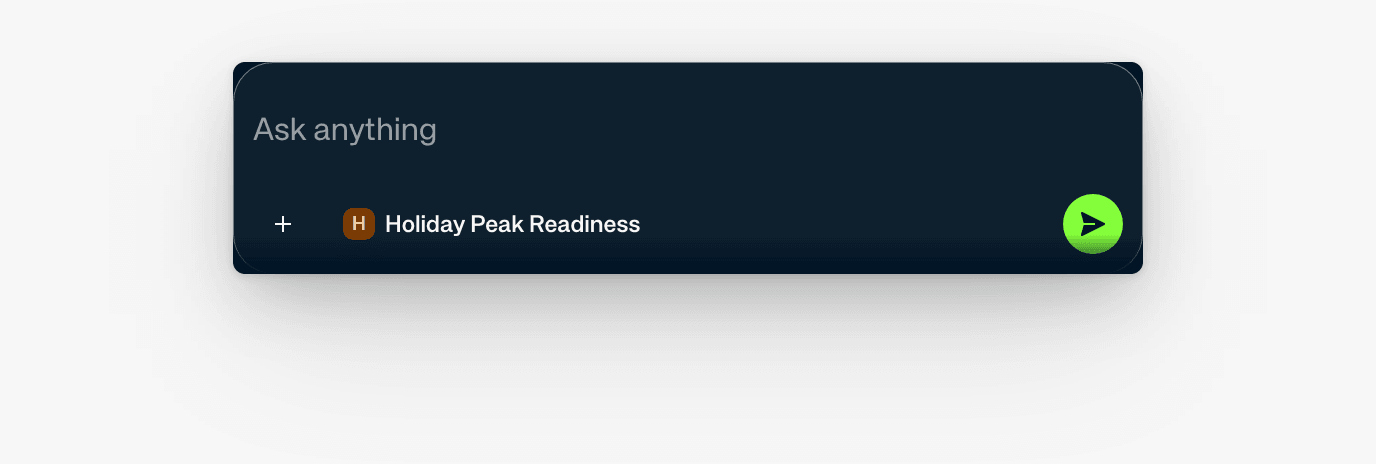
Use the page’s chat bar (Ask anything) and check its page context chip, or open Home and add the page’s Workspace as context. Ask a real question that the page should help answer, such as:
- What should a new owner understand first?
- Which decisions constrain the next step?
- What changed since the previous review?
- Which open questions need attention?
For work in another AI tool, select Send to [preferred client]. Review the prepared context before continuing.
The page has earned broader adoption when someone can use it without asking the original owner to reconstruct the background from memory.
Expand gradually
Add another page only when it has a clear owner, audience, and recurring use. Review the first page after an automatic edit before rolling the model out to more Workspaces.
Existing Workspace context can continue alongside maintained pages. Treat pages as durable narrative context; do not delete or migrate existing material without a reviewed transition.