Deliver Workspace updates to a Slack channel
Connect a Slack channel to a Workspace and deliver briefs and meeting updates there.
Connect a Slack channel to a Workspace when everyone in that channel should receive the same scheduled updates. Workspace channel delivery is separate from each person’s direct-message notifications.
Before you start
- You need Owner access to the Workspace whose delivery you want to change.
- The In Parallel Slack app must be installed for your organization.
- Link your own Slack account under Settings → Account → Connections before editing channels.
- The intended channel membership must be appropriate for the Workspace content.
Connect the Workspace channel
- Open your user menu and select Settings.
- Choose the Workspace.
- Open What feeds it.
- Under Workspace channels, select Edit Slack channels.
- Select the channel that should be connected to the Workspace, then select Save.
- Under Workspace → What feeds it, check the connected channel and Deliver briefs to channels where shown.
- Open Settings → [Workspace] → Briefing and automations.
- Open the relevant built-in briefing, review its schedule and sending state, and check Post to channels. This channel setting applies to every briefing in the Workspace.
Connecting a channel alone does not enable delivery. Review the intended channel and sending state when an expected briefing does not arrive. A direct copy selected under Members is separate from posting into a shared channel.
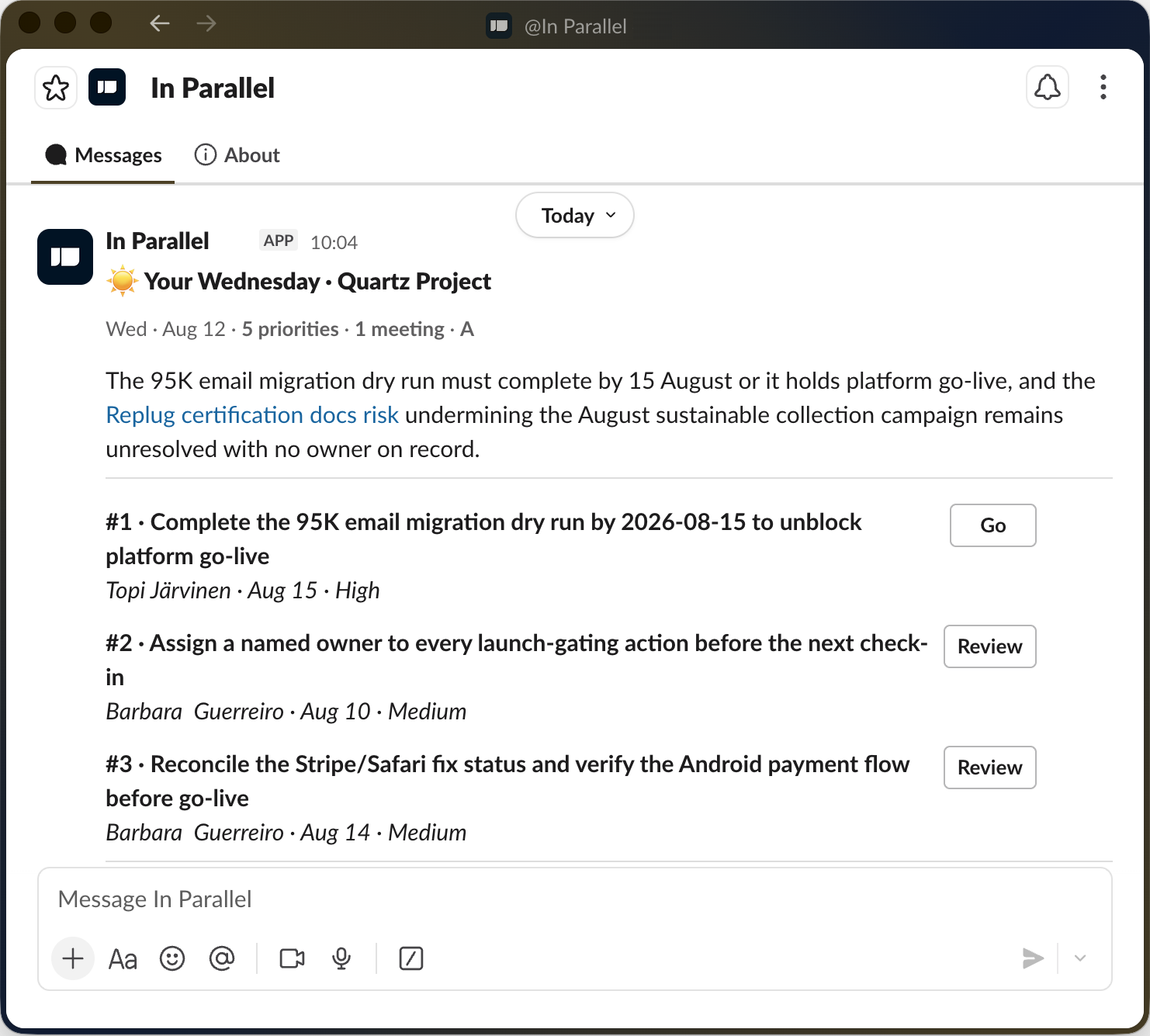
If your account shows Notifications → Briefs, use that card’s cadence and delivery controls. The following image shows its earlier Delivery to workspace control.

Choose other channel updates
- Enable Deliver meeting notes to channels for full reports from meetings mapped to the Workspace.
Each switch controls its own output. Turning off channel capture does not turn off posting.
Everyone in the Slack channel can see content posted there. Confirm that channel membership is appropriate for the Workspace before enabling delivery.
Each subscribed channel can also have its own Capture, Meeting notes, and Briefs checkboxes. Both the channel checkbox and the matching Workspace-wide switch must be on. When the Workspace switch is off, that checkbox is disabled for every channel. Review each channel separately; connecting a channel does not prove that the intended capture or delivery is enabled.
Related
- Configure Workspace briefs — schedules, length, and delivery.
- Manage your personal settings — personal Slack notifications and other integrations.