Connect a tool to a Workspace
Connect your own account to a tool, turn it on for a Workspace, hand it over to a colleague, or turn it off.
There are two steps to connecting a tool. First you connect your own account, and then you turn the tool on in each Workspace that should use it. In Parallel reads nothing for a Workspace until you complete the second step.
Before you start
- You can connect your own account to a tool in your personal settings.
- Only a Workspace Owner or a Company admin can turn a tool on for a Workspace. Other members see A workspace manager can enable or disable integrations.
- Your company decides which tools are available. If none are, you see No data sources are available to add. Your administrator can add more.
Connect your account
- Open Settings → Account → Connections.
- Under Add a data source, search for the tool by name and select Connect.
- Sign in to the tool and approve the access it asks for.
- If your account reaches more than one site, such as several Jira sites, choose the one to use and select Finish setup.
The account then shows as Connected, with No workspace uses this yet.
If your Microsoft 365 or Google Workspace organization doesn’t let people approve apps themselves, an administrator has to approve In Parallel first. Send them the integration access guide.
Turn it on for a Workspace
- Open Settings → [Workspace] → What feeds it.
- Under Workspace integrations, find the tool and read the hint: If you turn it on, records In Parallel creates on its own in [tool] appear as you.
- Select Use my [tool] here. The tool is turned on straight away.
The row then shows Writes to [tool] as [your name]. This is the account used by delivery rules that send without review. Approving a Jira issue or Planner task uses the approver’s own connected account instead.
You can also start from this page. Connecting a tool from Workspace integrations connects your account and turns the tool on for the Workspace in one go.
If your company has installed In Parallel’s own app for a tool, a Company admin can select Use the company’s In Parallel app instead of a personal account. Records In Parallel creates then appear as In Parallel.
Choose what the Workspace reads
GitHub isn’t turned on this way. It is read when you set up a Workspace from documents; see the Integrations overview.
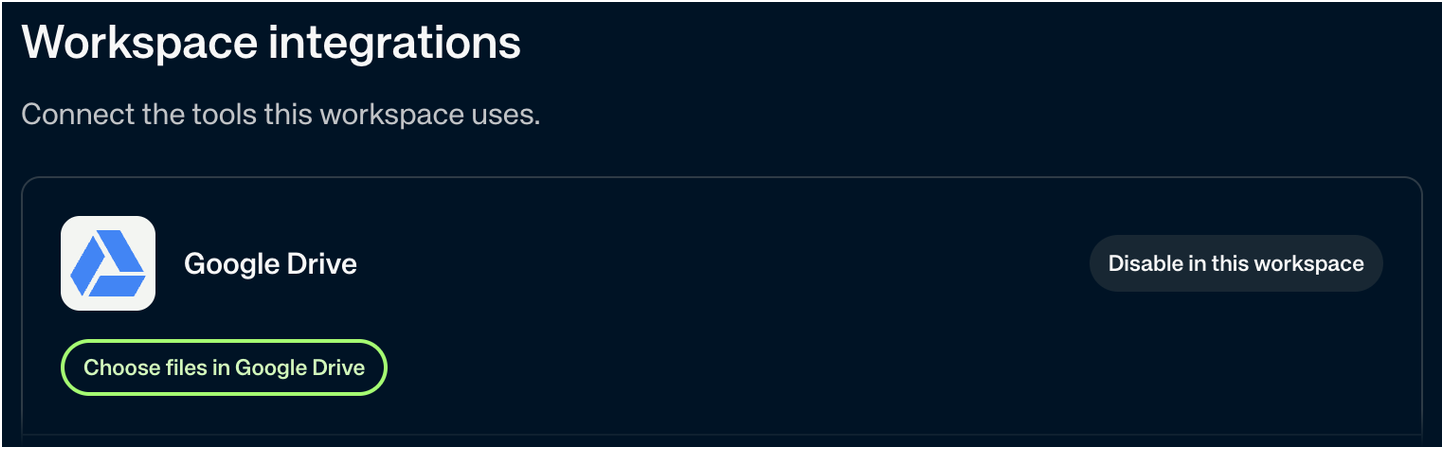
Turning Google Drive on doesn’t read anything yet. Next, select Choose files in Google Drive. Google’s picker opens over the current page. Choose individual files, confirm, then save your choices in In Parallel. Only the person whose account the Workspace uses can pick files.
See Set up a Workspace from Google Drive documents for the selection and review steps, and How In Parallel reads connected files for the reading rules.
Switch to another person’s account
A Workspace uses one account for each tool’s background reading and unattended sends. This is separate from the account used for a person’s approved sends. While the tool is on, you can’t swap one person’s account for another, but a Company admin can switch it to the company’s In Parallel app.
- When the account stops working, for example because its holder left the Workspace or their access expired, the row shows Needs reconnection and Previously connected by [name]. Background reading stops and unattended sends are held. Another Workspace Owner or Company admin can select Take over with my [tool] to carry on with their own account.
- When the holder disconnected their account, the row shows Needs reconnection. Another Workspace Owner or Company admin selects Use my [tool] here.
- To switch while it works, select Disable in this workspace. Whoever turns it on next selects Use my [tool] here. For Google Drive, disabling removes the chosen files, so choose them again afterwards.
With Google’s file picker, the new account holder may need to pick existing files again to grant access through their account. A file marked Needs picking through this account needs that step. See Troubleshooting: Integrations.
Turn a tool off
Select Disable in this workspace. Reading stops, and sends are held. The tool’s rules stay, but any chosen files are removed and documents from the tool leave the Workspace. What was learned from them stays. Turning the tool back on uses the account of whoever turns it on.
To stop In Parallel using your account everywhere, open Settings → Account → Connections, find the account and disconnect it. In Parallel stops using it in every Workspace that used it.
If an account needs reconnecting
If an account shows Needs reconnecting, see Troubleshooting: Integrations.