Manage your personal settings
Personal settings control your profile, interface, meeting notifications, integrations, Recorder behavior, preferred AI assistant, and update automations.
Personal settings control your profile, interface, meeting notifications, integrations, Recorder behavior, preferred AI assistant, and update automations.
Open Account settings
Open your user menu, select Settings, then choose Account under Your settings. If Settings opens a Workspace’s settings instead, choose Account in the left navigation.
Use Profile, Notifications, Recorder, Connections, and Automations. On a narrow screen, select Open menu, then expand Account to see these sections. Personal access tokens are under Connections.
Profile
Profile includes:
- profile picture;
- first and last name;
- My mandate;
- timezone, interface language, and spoken language;
- appearance and theme;
- account deletion under Delete account.
Set your timezone before choosing delivery times so schedules use the expected local time. The email address shown under Profile is the address you sign in with; contact your Company admin to change it.
To delete your account, use Delete my account under Delete account and confirm by typing your email address.
Notifications
Notifications are grouped into in-app notifications, your daily briefing, the Workspace briefs you receive, and meeting notes. Pre-meeting talking points are no longer a notification setting; to prepare for a meeting, ask in Chat.
In-app notifications
Choose what appears in your notification center: items assigned to you, activity and reminders on items you own, updates about your Workspaces and the Workspaces you own, automation suggestions, and nudges for empty meetings.
Personal daily briefing
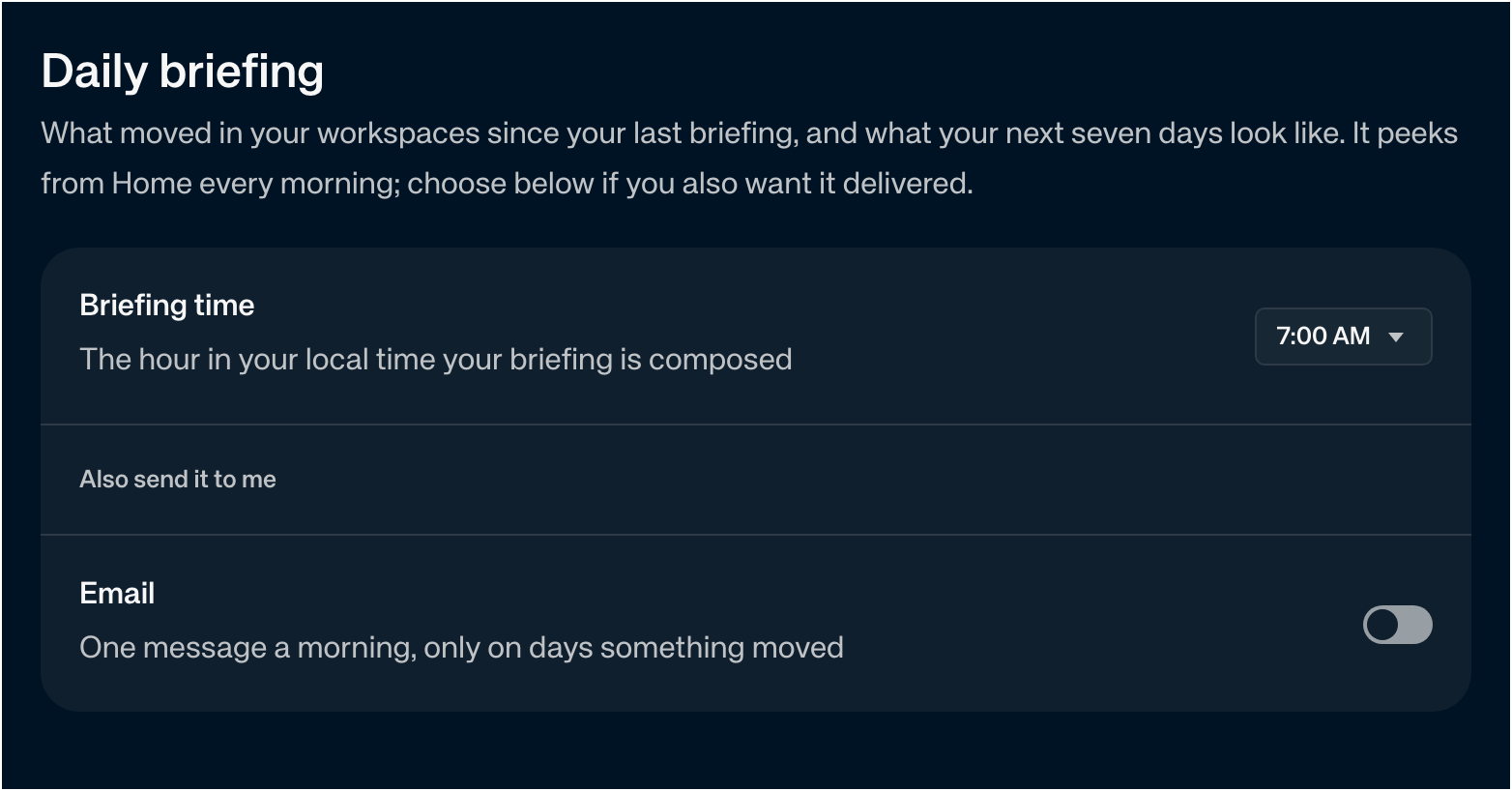
Find Daily briefing. Briefing time is the hour, in your local timezone, when the briefing is composed.
Under Also send it to me, choose Email if you want an email copy. The screen describes delivery on days when something moved. Delivery choices can depend on connected services.
Your personal briefing is separate from each Workspace’s Briefs schedule and delivery settings.
When a briefing appears on Home, select Read your briefing to open its reading page. You can also select Today’s briefing in the navigation. A 0 moved count does not necessarily mean it is empty. See Read your personal briefing.
If you expected an email copy, follow Personal briefing email checks. A briefing visible on Home does not confirm email delivery; changing a Workspace’s Briefs schedule does not change your personal briefing settings.
Workspace briefs you receive
Each Workspace decides when its brief is written. Under Workspace briefs you receive, you decide whether the brief reaches you and where.
For each Workspace you do not own, the list shows Delivered to you or Not delivered to you, a switch, and the delivery method: the Workspace default, or Email, Slack, or Microsoft Teams. Slack and Microsoft Teams appear once you have connected them. Brief ready notification controls the in-app notification for when a brief is ready.
A Workspace you own does not appear in this list. Its Owner sets Owner’s copy under Settings → [Workspace] → Briefing and automations. In the earlier Notifications → Briefs layout, use Delivery to you. See Manage your Workspace settings.
Meeting notes
Choose which notes are sent after your meetings, to whom, and how:
- Notes ready notification sends an in-app notification when meeting notes or a transcript are ready.
- Deliver notes by sets the delivery method for meetings you organize and meetings you attend: Email, plus Slack or Microsoft Teams once connected.
- Under Meetings I organize, choose whether to Send notes automatically, the Recipients (Only me, Internal participants, All meeting participants, or Only attendees who joined), and the Length (Short, Medium, Long, or Full). A Company or Workspace notes-length setting overrides this personal preference for the affected meetings.
- Under Meetings others organize, Send notes to me controls notes for meetings whose organizer does not use In Parallel or has turned notes off.
Recorder
Use Automatic joining to set the Internal and External defaults. Rules adds exceptions matching a meeting title, an attendee, or an email domain. The first matching rule decides, so place specific exceptions before broader rules.
Review the Recorder status on the individual meeting before relying on automatic capture. See Troubleshooting: Meeting loop.
Connections
Connections includes:
- Google and Outlook calendars;
- Zoom;
- Slack and Microsoft Teams notifications;
- AI assistants, with Setup instructions and preferred-assistant controls;
- Personal access tokens, with a token request form and your token list.
Under AI assistants, select Use [assistant] for Send to AI for your preferred destination. With no assistant selected, you are asked each time. Product actions can name the selected assistant, such as Send to Claude.
Choosing a destination does not connect its live data access. Use Setup instructions to configure the client’s connection and verify it in that client. A Connected status is separate from the preferred-assistant selection; disconnect connected assistants through their AI client.
When a connected calendar or Slack account needs newly required permission scopes, select Update available instead of disconnecting it first. See Update calendar and Slack permissions.
For a connection problem, see Troubleshooting: Integrations. Personal access token requests remain under Connections → Personal access tokens.
Automations
Open Automations from the main sidebar, or Settings → Account → Automations if your sidebar does not show it, to describe a recurring update or choose a suggested recipe. Setup continues in Chat, where you specify its Workspaces, schedule or after-meeting trigger, sections, recipients, and delivery channel.
Scheduled and after-meeting update automations prepare drafts for you to review. Use Review draft when one is ready, or Run history to inspect past drafts and delivery results. The built-in briefings under a Workspace’s Briefing and automations have separate settings and send automatically when enabled.
See Create and manage an update automation and Automations and briefings.