Set up a Workspace from Google Drive documents
Choose Drive files for a Workspace, follow the reading, and review the Context and pages you want to add.
Start with a few files that explain the work, such as the current project brief, a decision record, and a recent progress update. In Parallel reads your selection and drafts Workspace Context and pages for you to review.
Connect your own Google account and choose the files this Workspace should read. To change an existing Workspace’s integration settings, you need to be a Workspace Owner or Company admin.
Connect your Drive account
- Open Settings → Account → Connections. Under Data sources, find Google Drive.
- Select Connect and review Google’s permission request. Choose the Google account that can open the files you want to use.
- Return to Connections and check that Google Drive shows Connected. If it already shows Connected for the right account, go straight to choosing documents.
With the file picker, you choose which existing files to share with In Parallel. In Parallel uses them read-only: it doesn’t change, move or delete your originals. Google’s permission also allows creating new Drive files and editing or deleting files shared with the app; the integration access guide explains the difference for IT.
Choose what to read
There are two steps to adding Drive files. First, choose the files in Google’s picker. Then select Read in In Parallel to save the selection and start reading.
- New Workspace — Enter its name and purpose, choose From documents, then select Create & choose documents.
- First-Workspace checklist on Home — Choose From documents in the Workspace step, then select Save & choose documents.
- Existing Workspace — On Workspace Home, look for Start from your documents and select Choose what to read. You can manage its Drive connection under Settings → [Workspace] → What feeds it → Workspace integrations.
On that page, choose your documents and start the reading.
-
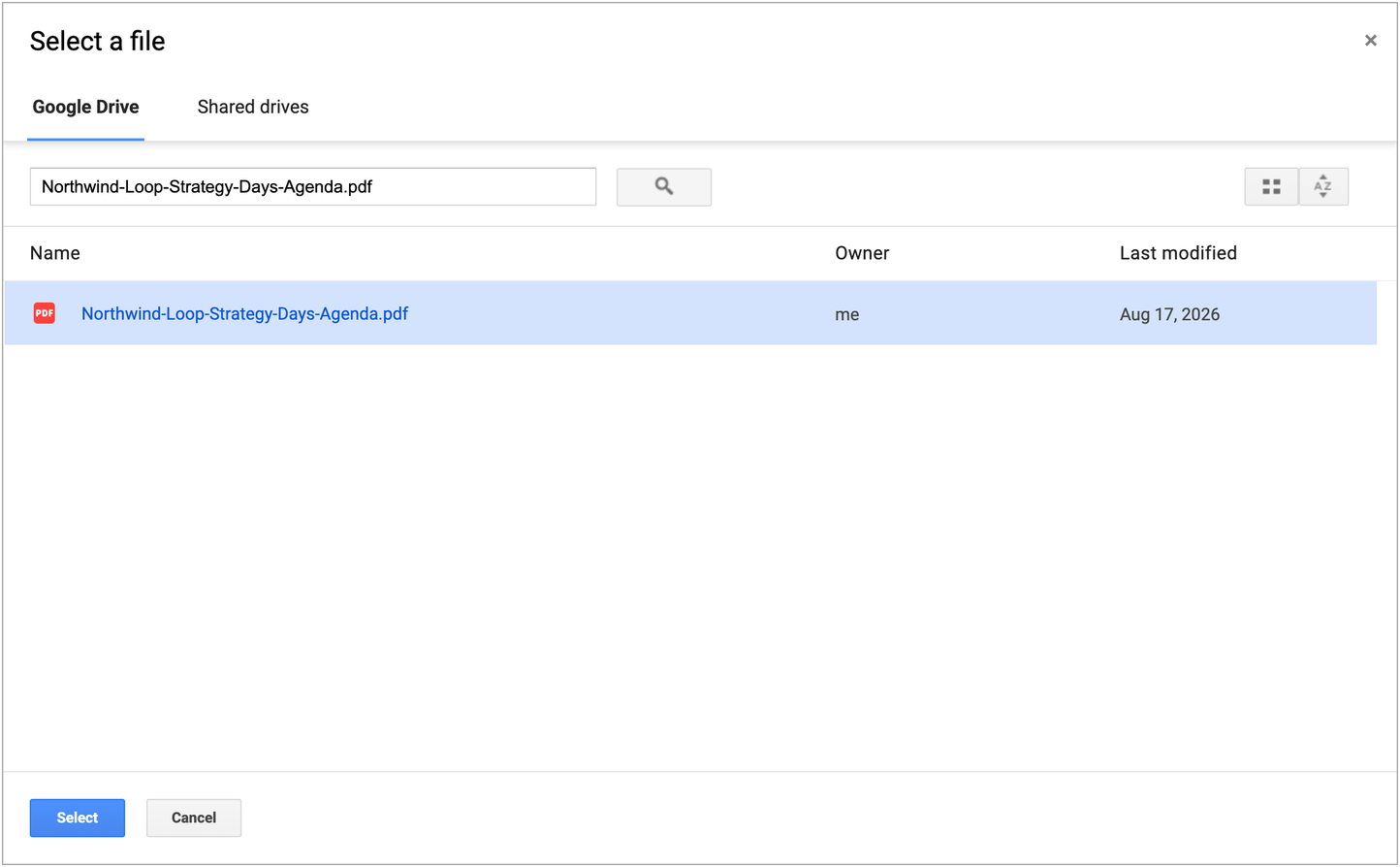
Under Google Drive, select Choose files in Google Drive. Google’s picker opens over the page.
-
Select the files you want to use, then select Select. You can select several files, including files in shared drives that your account can access. You can open folders to find files, but you can’t select a whole folder.
-
Check the chosen files shown back in In Parallel. Remove any you don’t want to use. Choosing files alone doesn’t save this Workspace’s selection.

-
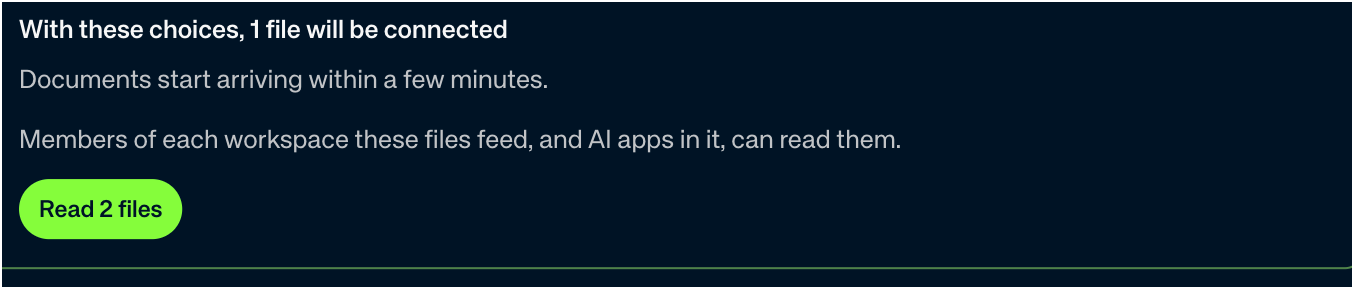
Select Read, followed by the file count, such as Read 2 files. This saves the selection and starts reading. The count can include documents already uploaded to the Workspace as well as your Drive selection.
-
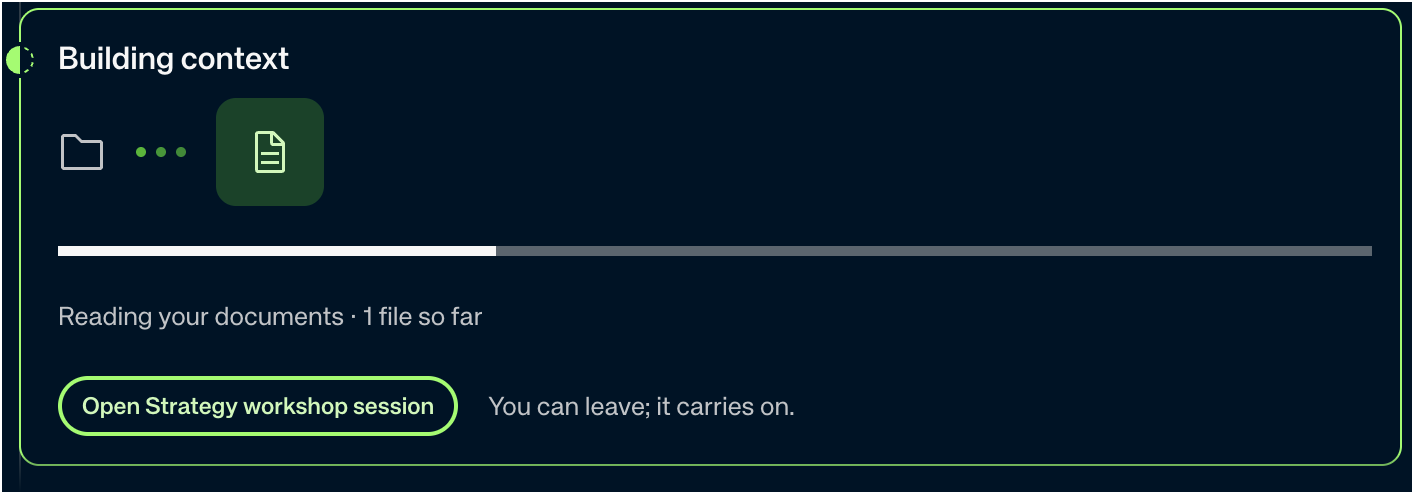
Follow Building context, or open Workspace Home and return later. Reading continues while you’re away.
Closing Google’s picker without confirming leaves your selection unchanged. For picker errors or files that need selecting again, see Troubleshooting: Integrations.
In Parallel reads documents, spreadsheets, presentations, PDFs and text files, up to 10 MB each. A Workspace holds up to 50 connected documents. Review the count and any files left out before starting.
For the full reading rules, see How In Parallel reads connected files.
Review the results
-
On Workspace Home, find From your documents and select See what to set up.

-
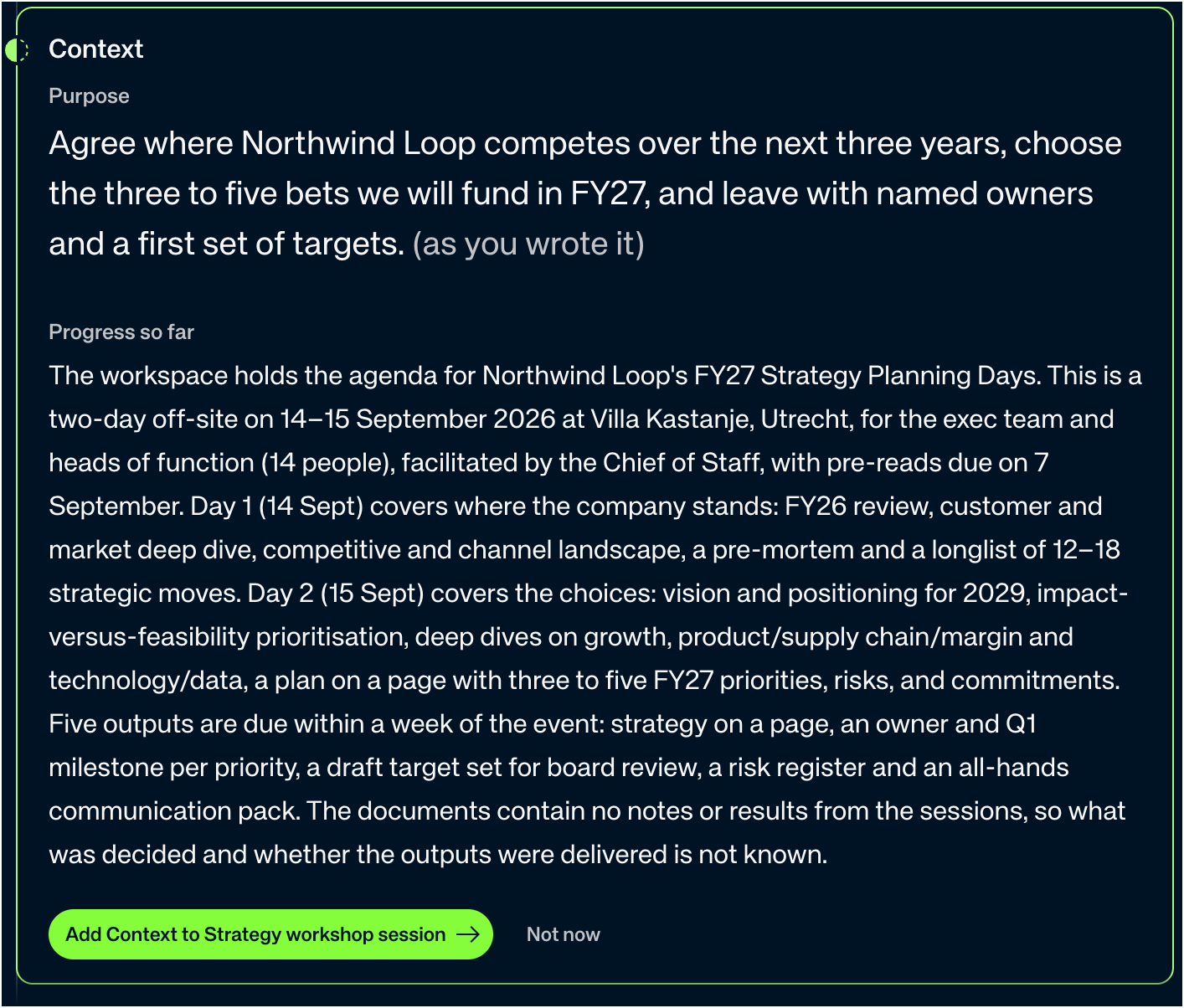
Review the proposed Context, including the Workspace purpose and progress so far. Select Add Context to [Workspace] if it reflects the team’s work, or choose Not now.
-
Preview the proposed Pages, including each page’s outline. Add the pages you want, or choose Not now.
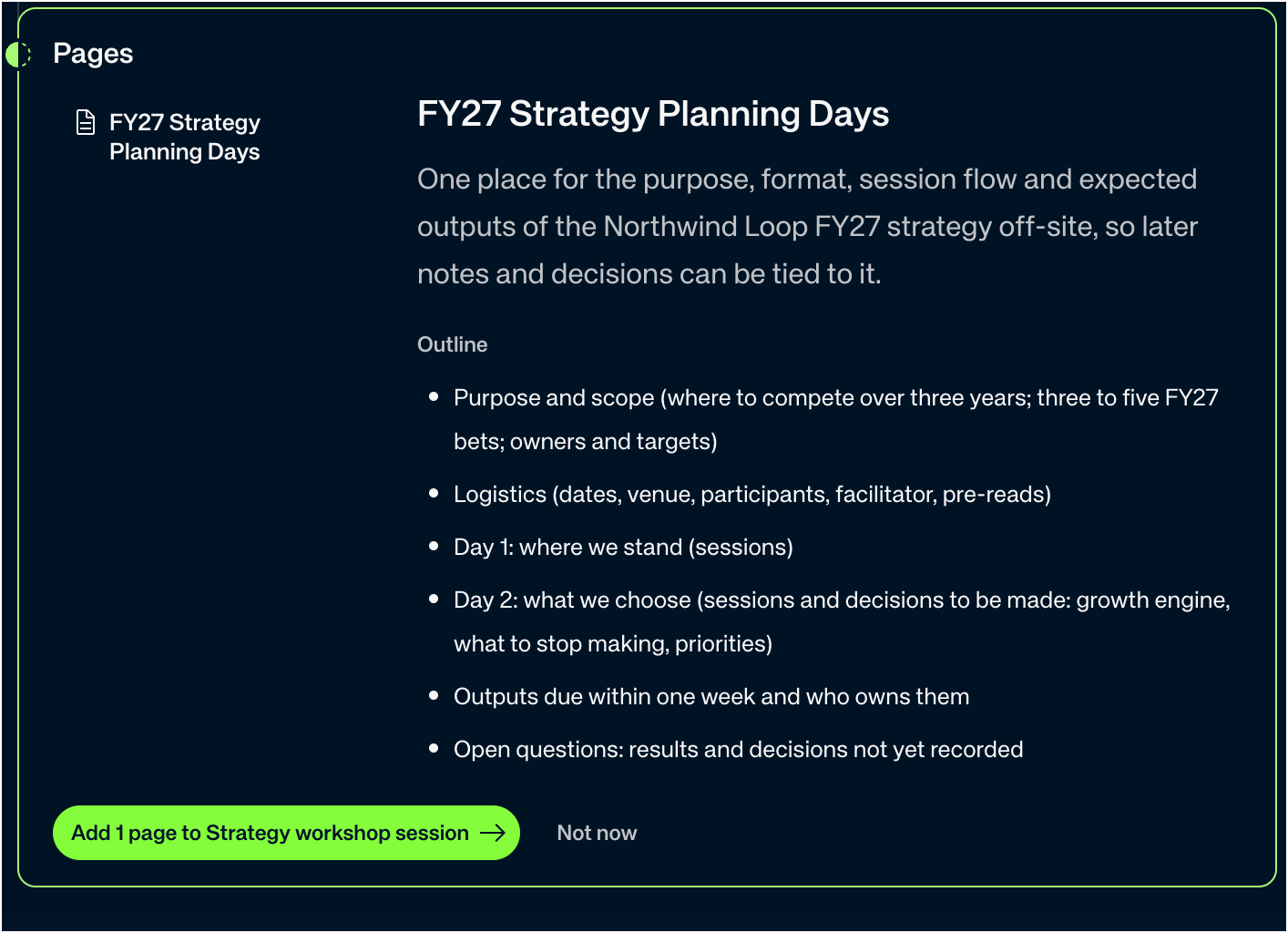
-
If a People step appears, review its suggestions. When the review is complete, select Open workspace.
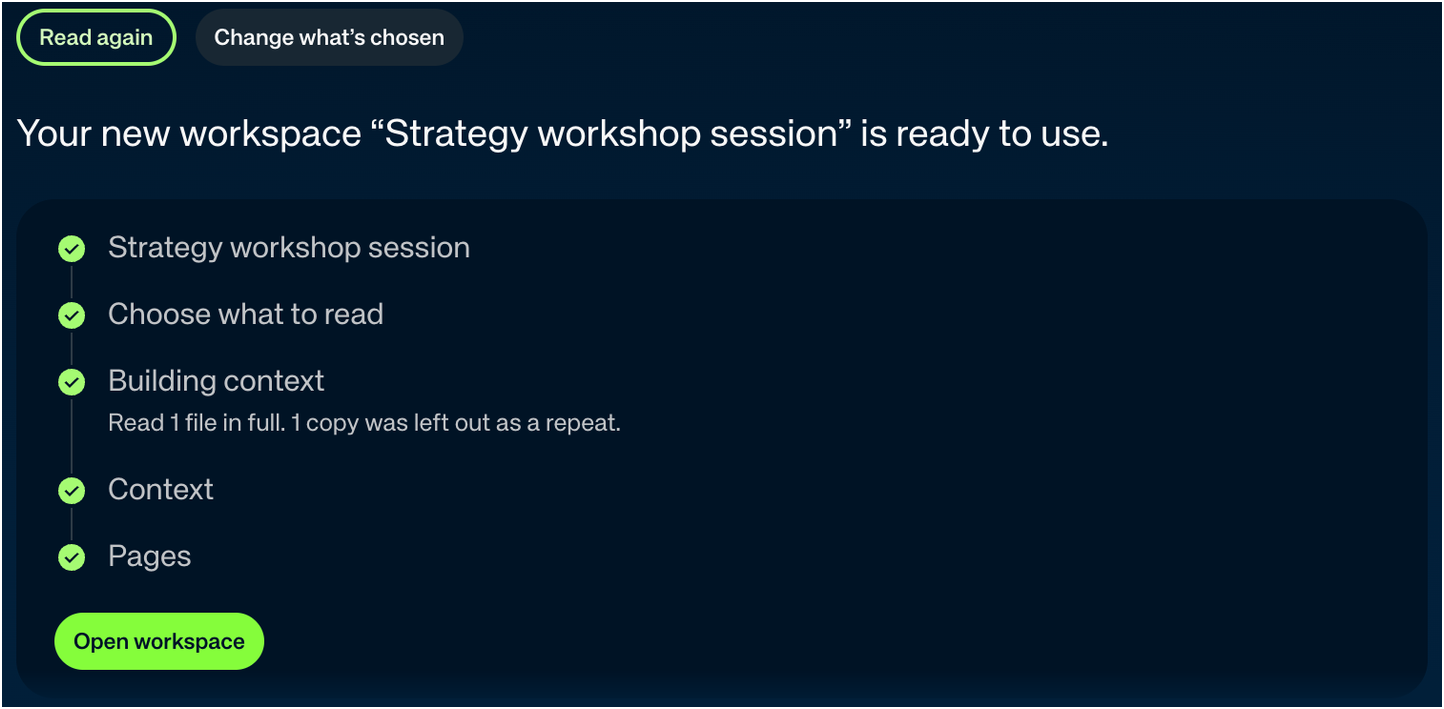
The Context and pages you add belong to the Workspace. Your original files stay in Drive. You can complete the review with Not now; a completed step doesn’t mean its suggestions were added.
The reading summary also reports copies left out as repeats. In this example, the uploaded document and the selected Drive PDF were copies, so In Parallel read one file in full.
Change what the Workspace reads later
Open Settings → [Workspace] → What feeds it → Workspace integrations and find Google Drive.
- To add, select Choose files in Google Drive, pick the files, and confirm. Back in In Parallel, select Add all to read all the added documents for decisions, risks, action items and other information, or Let In Parallel choose to select the reference documents relevant to the Workspace now. Only the person whose account the Workspace uses can pick files. Anyone else sees whose account it is.
- To remove, remove a file from your choices and select Save. Any Workspace Owner or Company admin can remove. Documents from what you remove will leave this workspace. What was learned from them stays.
In Parallel never changes your files in Drive. If someone edits a chosen file, the change is read once the file has been left unchanged for an hour, at the next hourly check.