Connect ChatGPT to In Parallel
Connect In Parallel to ChatGPT and choose which Workspaces it can access.
Connect In Parallel to ChatGPT using its MCP server. ChatGPT may label the connection a plugin or an app, depending on the experience available to your account. See OpenAI’s current connection and permission guidance if your menus differ.
- Check access. Full MCP support is available on ChatGPT web for Business, Enterprise and Edu. Business admins and owners can create connections; Enterprise and Edu admins can also grant creation access to selected members. Workspace publication requires an admin or owner. Pro connections support read and fetch actions only.
- Add In Parallel. In the current Plugins page, choose + → Add custom MCP server. Enter In Parallel, the server URL
https://www.in-parallel.ai/mcp, and OAuth authentication. Acknowledge the server warning, choose Create as a plugin, and inspect the discovered tools. This flow does not require a separate Developer Mode switch. If you have the legacy experience, use Settings → Apps → Create and complete its tool scan. - Authorize your In Parallel account. Sign in, then choose Full access for all current and future Workspaces or select individual Workspaces. Review the requested access and select Allow access. In a new ChatGPT chat, select In Parallel and ask about a Workspace you allowed.
Desktop reference. The previously verified desktop flow uses Customize → Plugins → Add → Create MCP App. The screenshots below show that desktop experience; labels in the current web flow can differ.
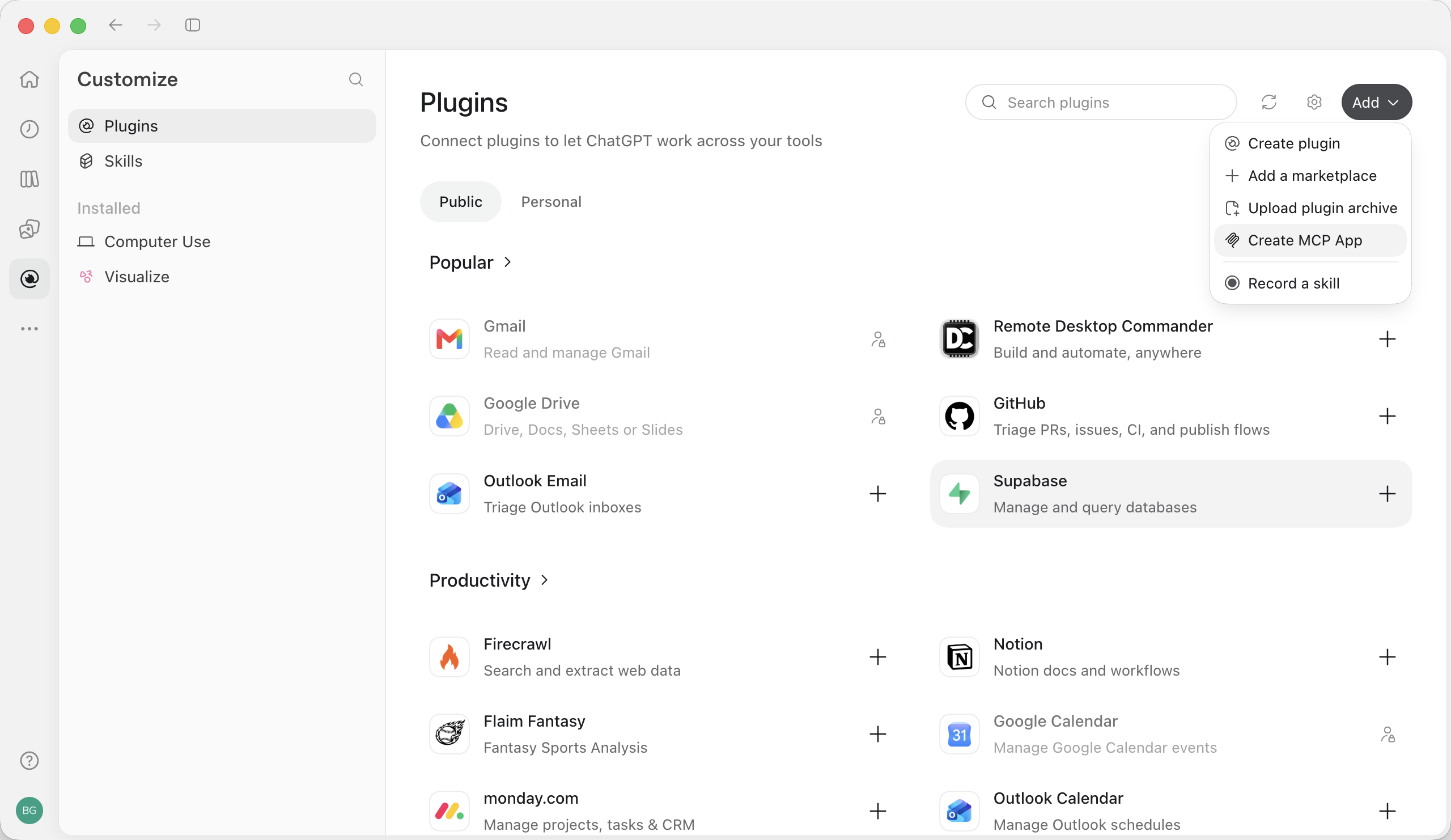
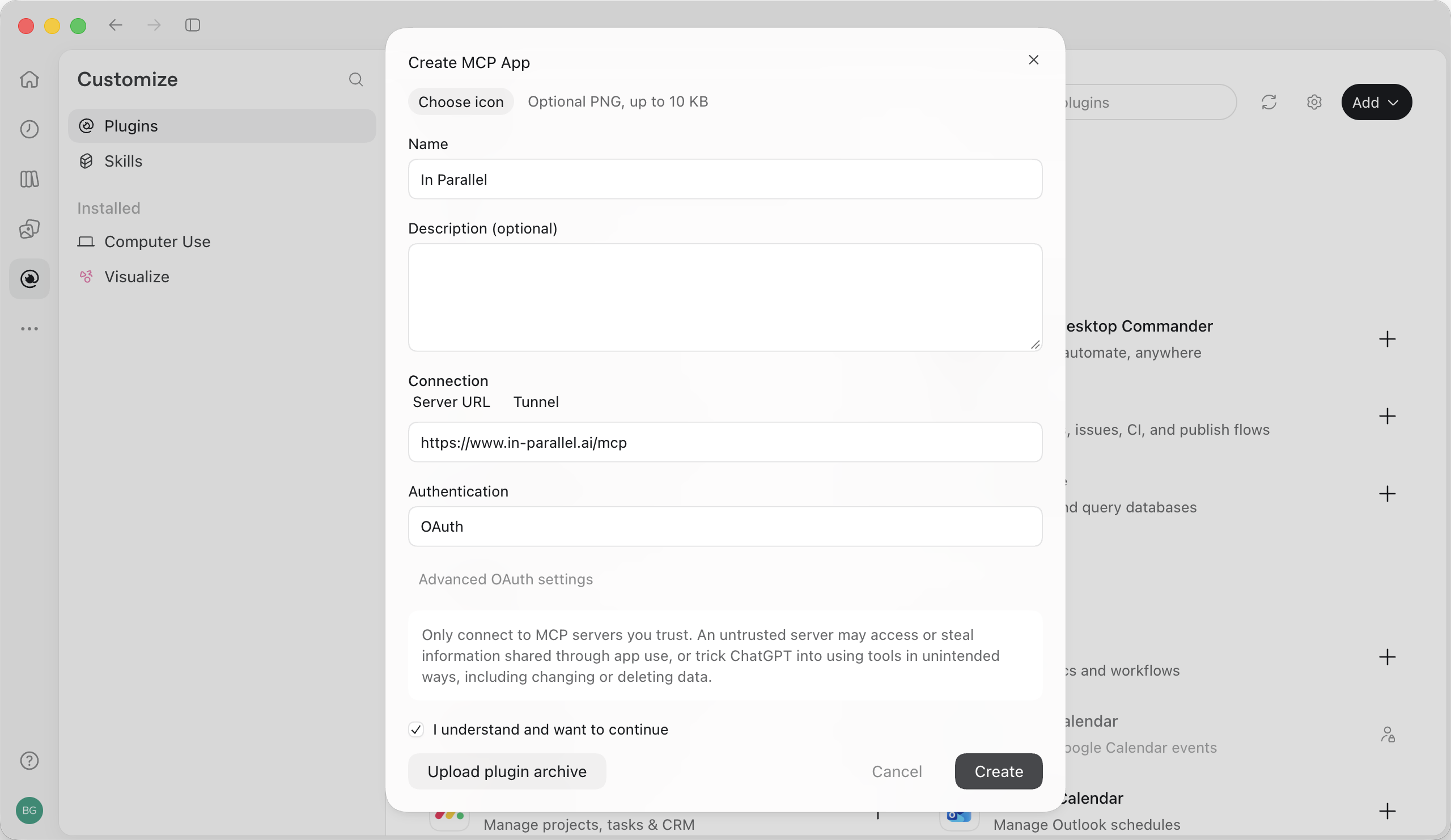
For current setup, follow the web instructions above and install the resulting connection, then use @In Parallel in a new chat to test a permitted Workspace. The desktop screenshots are a historical reference for the previously verified flow. Mobile connections are not supported.