Configure Workspace observation kinds
Choose the Signals a Workspace monitors and review the fields for a custom observation kind.
Updated 9 August 2026
Observation kinds tell In Parallel what AI should observe in meetings and other authorized source content. Built-in kinds can include decisions, while custom kinds let a Workspace define signals such as customer needs.
Open Observation kinds
- Open your user menu and select Settings.
- Choose the Workspace.
- Open Meetings & channels.
- Scroll to Observation kinds.
Enabled observation kinds can be extracted from meetings and connected channels. Their observations can contribute to generated Workspace pages and other current surfaces.
Signals
The Signals section lists situational-awareness kinds, their descriptions, Edit controls, and enable switches. The inspected built-in kinds include Absent Topic, Avoided Question, External Reference, Unit Economic, and Unspoken Tension.
Signals can be extracted from meetings and channels and contribute to findings and maintained pages. They are different from the page’s maintenance instructions: use Page skill to guide how a specific page is maintained.
Turn a Signal kind on or off
Use the switch beside a Signal kind to control whether the Workspace monitors it.
Enable only kinds that someone will review and use. Broad or overlapping guidance can create noisy, duplicative observations and pages.
Review the custom Signal form
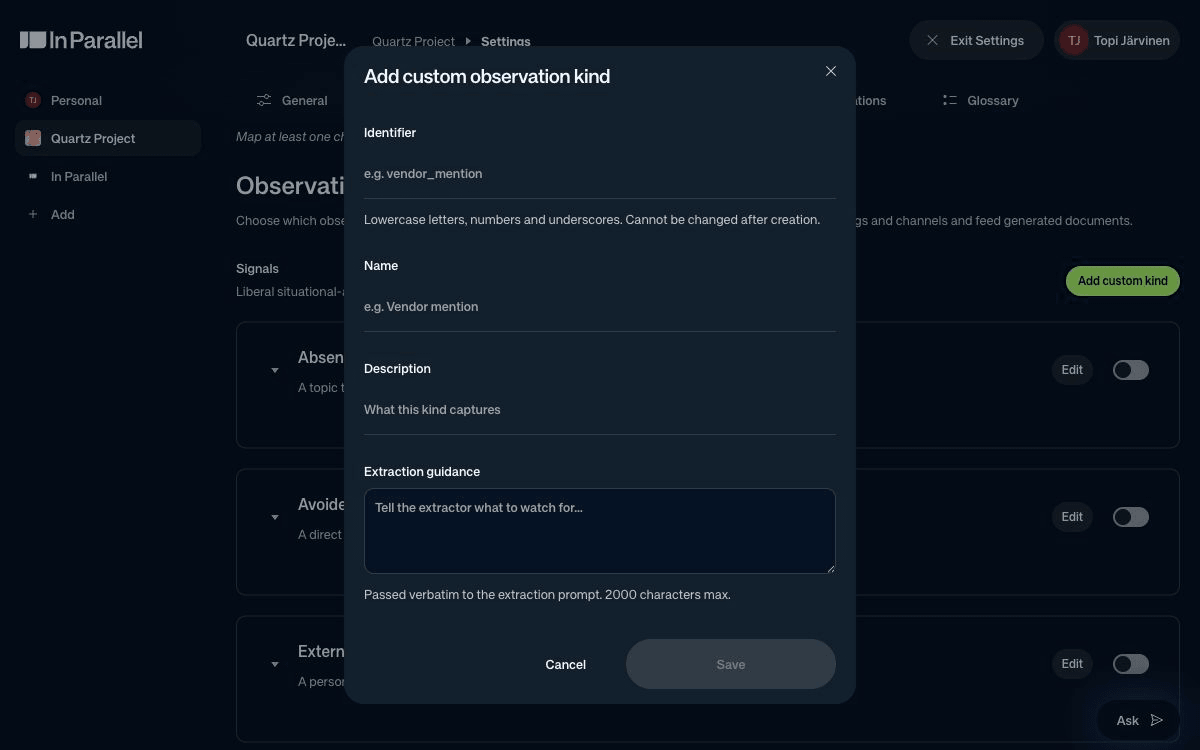
Under Signals, select Add custom kind to open the form. It contains:
- Identifier — uses lowercase letters, numbers, and underscores; the form marks it as unchangeable after creation.
- Name — the customer-facing label.
- Description — what the kind captures.
- Extraction guidance — evidence, exclusions, and noise limits, with a 2,000-character limit.
Before using a custom kind in production, agree who will review its output and how noisy or obsolete observations will be handled.
Write guidance that states:
- what positive evidence qualifies;
- what should not be captured;
- which sources or wording are required;
- how to avoid duplicates;
- when an existing observation should be updated instead of creating another one.
The settings can also show Edit for supported kinds and Reset to defaults for built-in kinds. Check the current product guidance or contact support before changing a production kind’s definition or lifecycle.
Related
- Use your Workspace pages
- Edit and customize Workspace pages
- Manage your Workspace settings
- AI in In Parallel