Troubleshooting: Meetings and Recorder
Solutions for Recorder joining, missing Notes or Transcript, Workspace association, and meeting follow-up Actions.
Updated 24 September 2026
The Recorder did not join
- Open Settings → Account → Connections and confirm that the correct calendar is connected.
- Open Settings → Account → Recorder and review the Internal and External defaults under Automatic joining.
- Review Rules for an exception that matches the meeting’s title or an attendee. The first matching rule decides; see Set automatic Recorder behavior.
- Open the meeting, check its Recorder status, and confirm that its Recorder: Invited switch is on. This per-meeting switch controls whether the Recorder is invited independently of Workspace linkage.
- If the meeting uses Zoom, confirm that Zoom is connected.
The Recorder may also be denied entry by the meeting host or platform. Make sure your automatic joining rules match participant expectations and your organization’s recording policy.
Check the Recorder status
Open the meeting and read the Recorder message above Notes.
| Message | What to check |
|---|---|
| Recorder scheduled | The message shows the planned join time. This does not mean the Recorder has joined yet. |
| Recorder is joining the meeting | The Recorder is connecting. Check again for the result and admit it if your meeting platform requires host approval. |
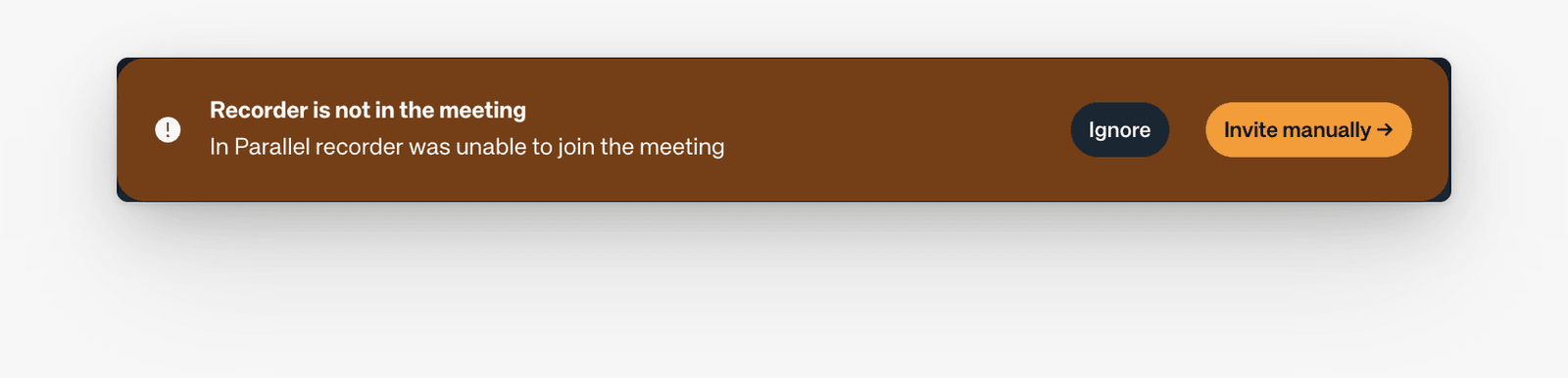
| Recorder is not in the meeting | The Recorder could not join. Check the meeting link and host permissions, then use Invite manually if you want to try inviting it. |
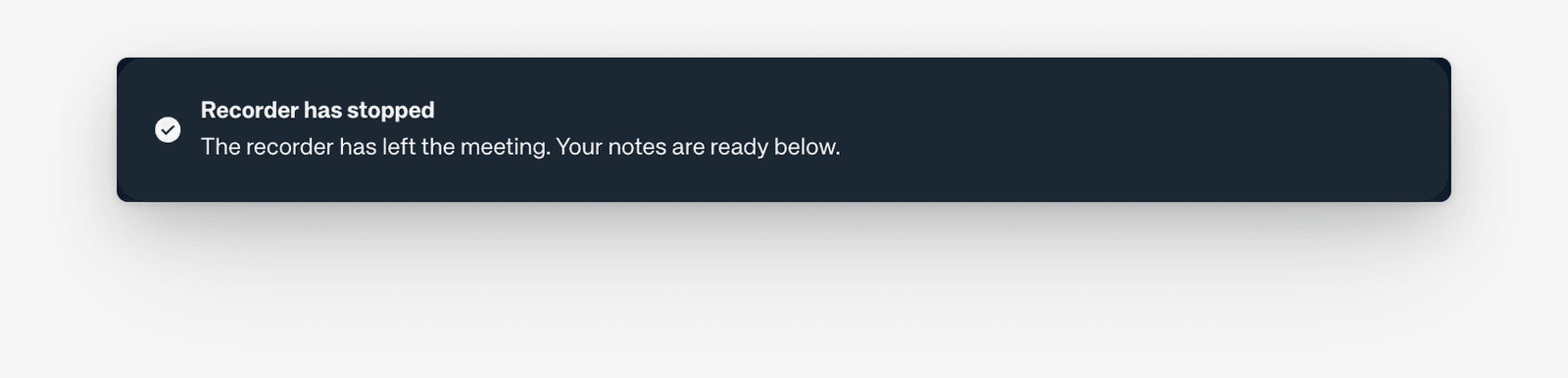
| Recorder has stopped | The Recorder has left. Check Notes below; the message alone does not explain why it left or guarantee a complete recording. |
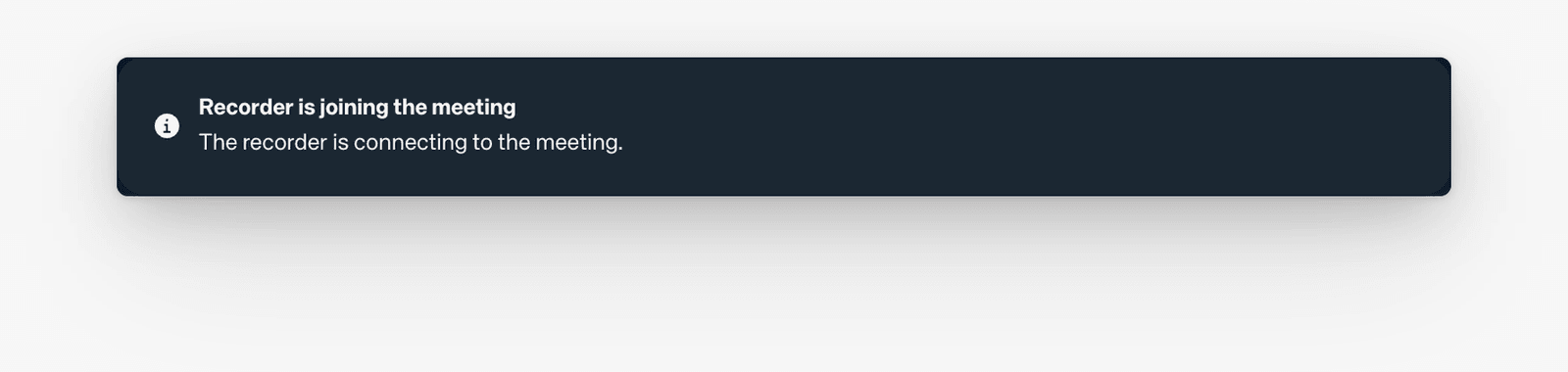
The failed-join message offers Invite manually and Ignore:
After the Recorder leaves, check the available output:
Meeting in progress describes the meeting. An enabled Recorder: Invited switch describes the invitation. Neither, on its own, confirms that the Recorder is capturing the call.
I invited the In Parallel email address, but the Recorder didn’t join
Invitations sent to your company’s In Parallel address, whether you added it as a guest or forwarded the invitation, book the Recorder only when all of these hold. Check each one:
- Your email domain has DKIM set up for your own domain, not only your email provider’s default. DKIM is an email signing standard that proves a message really comes from your domain; your IT team or email administrator usually sets it up. Ask them to confirm it, using your provider’s guide: Microsoft 365: DKIM for your custom domain or Google Workspace: Set up DKIM.
- You sent it from your In Parallel account’s email address. The sender must be a signed-up user in your company’s In Parallel account.
- You are the organizer or an attendee of the meeting.
- The email included the calendar invitation. A message without the invitation attached is not used.
- The meeting has an online meeting link and is not an all-day event. Check that the invitation includes a Zoom, Microsoft Teams, or Google Meet link.
An invitation that fails the DKIM, account, organizer-or-attendee, or invitation check is dropped without a reply or an error. A meeting without an online link, or an all-day event, is still added to Meetings, but without the Recorder. If all of these check out, contact support with the meeting title, its start time, the address you sent the invitation from, and roughly when you sent it.
The meeting says “No notes yet”
Processing may still be in progress. Wait and refresh the meeting. If Notes never appear, confirm that the Recorder joined and remained in the meeting long enough to capture useful content.
There is no Transcript tab
The Transcript tab appears only when a transcript is available. Use Notes for the readable output. If exact wording is required and no transcript was captured, confirm the Recorder and meeting-platform setup before the next meeting.
Notes missed or misattributed an important point
Open Transcript when available and check the source wording. Correct the working record rather than relying on an inaccurate summary. For future meetings, state decisions and ownership explicitly.
Actions is empty
The Actions tab contains follow-up work that In Parallel can prepare from the meeting. A meeting may have no Actions when there is no clear external follow-up or when processing has not produced a useful task.
Use the Workspace’s Action Items page when the important outcome is an owned commitment rather than a prepared email, post, tracker update, or meeting follow-up.
The meeting is associated with the wrong Workspace
Open the meeting details and use Add workspace to correct its Workspace association. Some accounts may still show Publish to. Choose only the Workspaces the meeting genuinely concerns.
A meeting is missing from a Workspace’s Past meetings
A Workspace’s Past meetings list shows only meetings that have been added to that Workspace. An empty list reads No meetings in this workspace yet. Open the meeting from your own Meetings list and add it to the Workspace; see Connect a meeting to your Workspace. Older meetings load as you scroll down the list.
Send to AI opened the wrong client
Open Settings → Account → Connections → AI assistants and select Use [assistant] for Send to AI. To be asked each time, clear the selected assistant. The meeting action may name your selected assistant, such as Send to Claude.
I am not receiving meeting notifications
Open Settings → Account → Notifications → Meeting notes and review your personal meeting preferences. Then check Settings → Account → Connections to confirm that the notification channel you expect is connected.
Still stuck?
Contact the In Parallel support team with the meeting title, date, platform, Recorder status, and which output is missing. Avoid sending transcript content through an unapproved channel.
Related
- Connect a meeting to a Workspace
- Review meeting Notes and Actions
- Connect your calendar, notifications, and AI tools
- Actions and ownership